
.png)
A frozen screen or unresponsive pen can stop a lesson within seconds. Yet many interactive flat panel problems do not need an immediate service visit.
The first step is to locate the fault. It may come from the display, an OPS computer, a connected laptop, a cable, or the school network. This guide helps teachers and IT teams make that distinction safely.
Interactive Flat Panel Troubleshooting at a Glance
Why Do Interactive Flat Panels Stop Working?
An interactive flat panel or smart board combines several hardware and software layers. A fault in one layer can make the entire system appear broken.
Common causes include:
- Unstable power or a faulty power strip
- Loose, damaged, or incompatible cables
- An incorrect input source
- A missing USB touch connection
- Outdated panel firmware or computer drivers
- Limited storage or too many open applications
- Weak Wi-Fi or failed Bluetooth pairing
- Dust or objects blocking infrared sensors
Work through the checks in order. Changing several settings at once makes the real cause harder to identify.
7 Interactive Flat Panel Problems and How to Fix Them
1. Smart Board Touch Screen Not Working or Responding Slowly
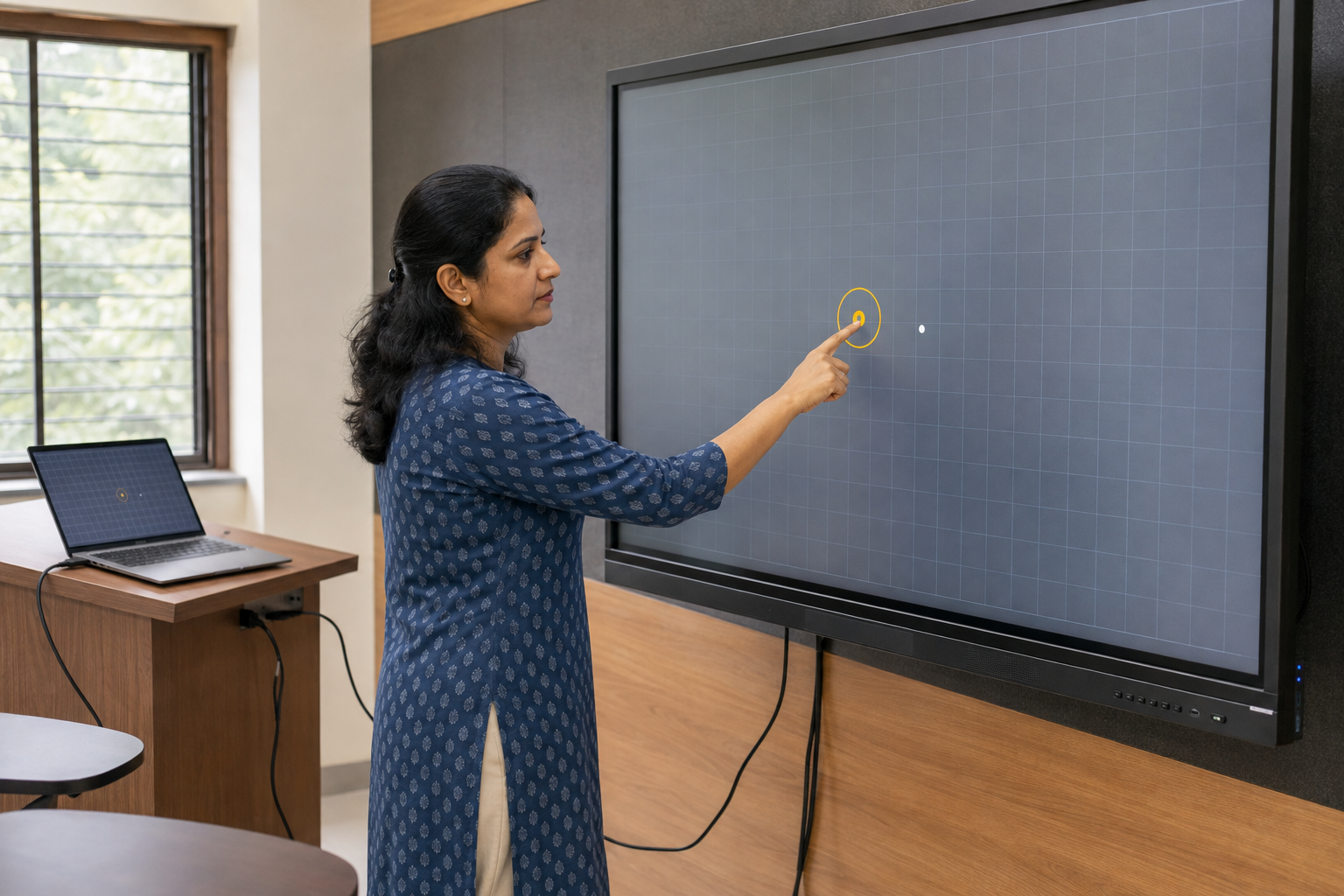
First, check whether touch works on the panel’s home screen. If it works there but not on a connected laptop, the display itself may be fine.
Check the USB touch cable, touchscreen lock, and required driver on the laptop. Some panels use separate USB touch ports for different HDMI inputs.
Also inspect the frame for dust, decorations, or other objects blocking the infrared sensors. Clean it according to the manufacturer’s instructions.
If writing feels delayed, close unused apps and restart the interactive flat panel. Institutions comparing systems can also use these interactive panel responsiveness tests.
2. Smart Board Pen Not Working or Writing
“Smart board pen not working” is not always a battery problem. Many panels use passive styluses that do not need charging.
Start by identifying the pen type. Recharge or replace the battery only if it is an active pen. Then test finger touch if the model supports it.
If finger touch works but the pen does not, try another compatible pen. Check the whiteboard app’s selected writing tool and inspect the sensor area.
If neither touch nor pen input works, return to the touch connection and driver checks in the previous section.
3. Smart Board Not Turning On or Showing a Black Screen
A smart board black screen can mean two different things. The panel may have no power, or it may be powered but receiving no image.
If no indicator light appears:
- Check the wall outlet with another safe device.
- Confirm the power cable is secure.
- Check the power strip or surge protector.
- Use the panel’s physical power button.
- Confirm that the main power switch is on.
If the light is on, wake the panel and select its home screen. The problem may be the input source rather than the display.
Do not open the casing or attempt an internal electrical repair.
4. No Signal, Flickering, or Blurry Display
If the home screen looks normal but a laptop does not appear, focus on the connection.
Select the correct HDMI, USB-C, or OPS input. Reconnect the cable at both ends and test another compatible cable. Where possible, connect the device directly without an extender or converter.
Check whether the laptop detects the display. Its resolution and refresh rate must also fall within the panel’s supported range.
For an OPS computer, confirm that it powers on and appears as an available source. Only trained staff should remove or reseat an OPS module.
Persistent lines, color patches, or flickering across every source may indicate a panel fault.
5. No Sound from the Interactive Panel
Test sound from content stored on the panel first. If that works, the fault likely sits with the connected laptop or cable.
Check:
- Volume and mute settings on both devices
- The selected audio output
- HDMI or USB-C audio support
- App-specific volume controls
- External speaker connections
Restart both devices after changing the output. If the internal speakers remain silent across every source, contact technical support.
6. Screen Freezing or Apps Not Responding
An interactive flat panel may slow down when storage is nearly full or several demanding apps run together.
Close unused applications and check available storage. Remove files or apps only after confirming they are no longer needed. Clear an app’s cache only if the operating system supports it.
Install approved firmware and software updates. Restart the panel after saving open work.
Avoid a factory reset as an early fix. It may remove accounts, applications, files, and classroom settings.
7. Wi-Fi, Bluetooth, USB, or Casting Not Working
Test one connection type at a time.
For Wi-Fi, reconnect the network and confirm that other classroom devices can access it. A permitted mobile hotspot can help the IT team determine whether the school network is responsible.
For casting, check that both devices use compatible software and the required network. Review screen-sharing permissions and confirm that another user is not occupying the session.
For Bluetooth or USB, remove the device and pair or connect it again. Test another port or accessory where available.
See Roombr’s interactive panel connectivity guide for more on HDMI, USB-C, screen sharing, and casting.
When Does an Interactive Panel Need Professional Repair?
Stop troubleshooting and contact qualified support if you notice:
- Cracked glass or liquid damage
- Sparks, smoke, or a burning smell
- Unusual heat
- A loose or damaged power port
- Display lines across every input
- Repeated shutdowns after a safe restart
- Touch failure after connection and driver checks
Record the model number, indicator-light status, selected input, and steps already tested. Photos or a short video can also help the support team diagnose the fault faster.
How to Prevent Repeat Smart Board Problems
A simple routine can reduce classroom downtime:
- Shut down the panel correctly after use.
- Clean the screen and sensor area safely.
- Check cables and ports for visible wear.
- Review storage before it becomes full.
- Install approved updates on schedule.
- Keep a basic issue log for each classroom.
For planning warranties and ongoing support, read this guide to interactive panel maintenance.
Keep Classroom Technology Ready for Teaching
Effective smart board troubleshooting starts with isolating the problem. Check the panel, source device, cable, software, and network separately. This avoids unnecessary resets and service calls.
If repeated technical issues are making teachers manage several devices, consider a more integrated approach. Explore Roombr Pro, a projection-based digital classroom system that combines computing, interaction, cameras, classroom audio, and teaching tools in a single device.

Foziya Abuwala
Share
Step Into the future of
Education with Roombr