
A screen can look impressive during a product demo. The real test begins when a trainer must explain code, show a machine part, or manage another batch ten minutes later.
For a training institute, the decision is not simply whether to buy an interactive flat panel. It is whether the full setup supports the way instructors teach each day.
What Does an Interactive Flat Panel Do Well?
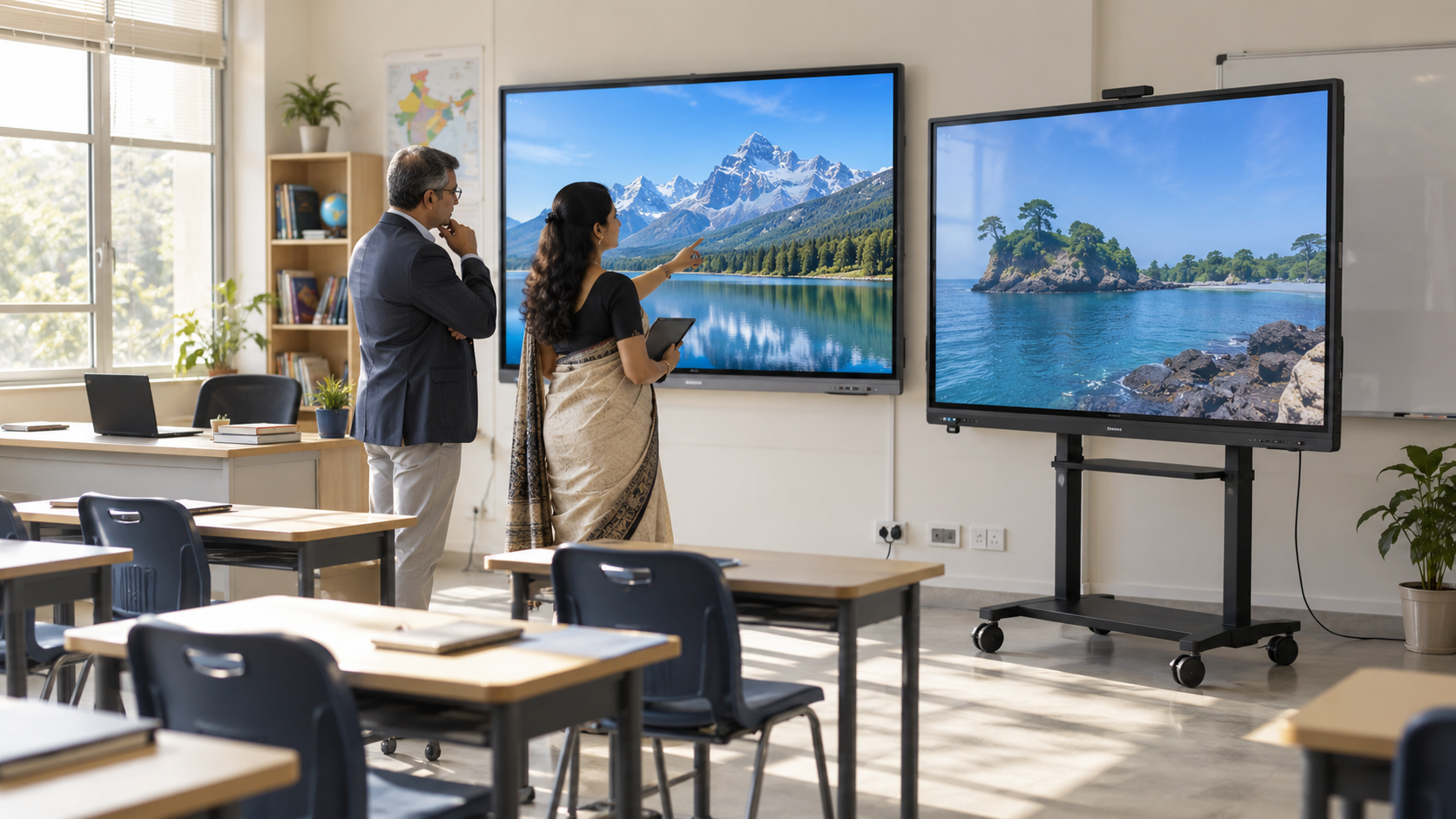
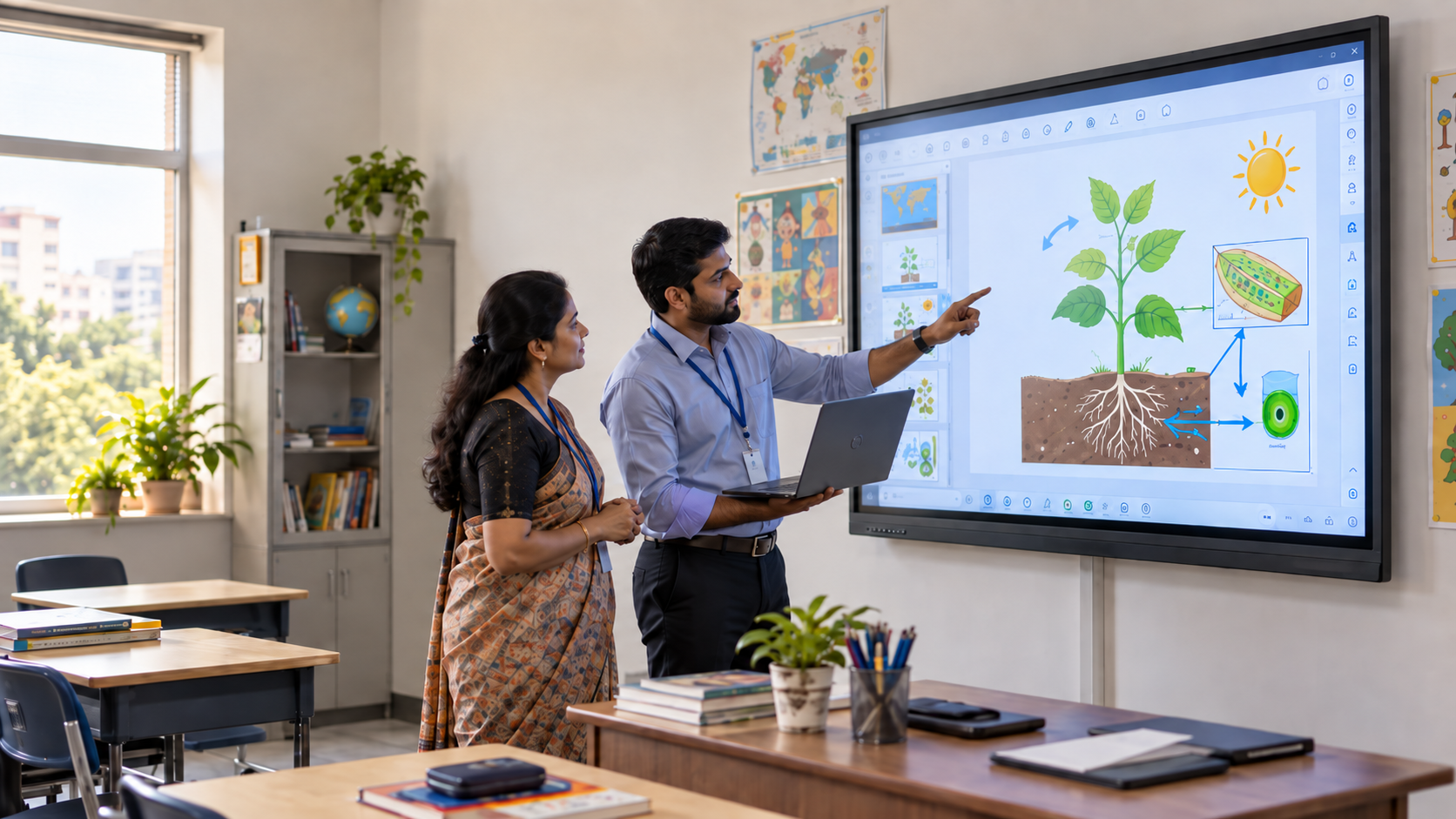
An interactive flat panel is a large touchscreen used for digital instruction. Trainers can write on it, mark diagrams, open media and invite learners to interact.
Modern panels may include an operating system, teaching software and built-in computing. Others may require an OPS module or external computer. Cameras, microphones, speakers and recording tools may also be built in or added separately.
The package varies by model. Training institutes should compare the complete quoted configuration, not only the screen size, touch features or display resolution.
A panel can provide useful classroom technology:
- Clear display of slides, videos and diagrams
- Digital writing and annotation
- Touch-based activities
- Screen sharing from compatible devices
- Saved notes and whiteboard pages
Buyers may also call this an interactive screen or an interactive board for classroom teaching.
Why Training Institute Classrooms Need a Different Evaluation
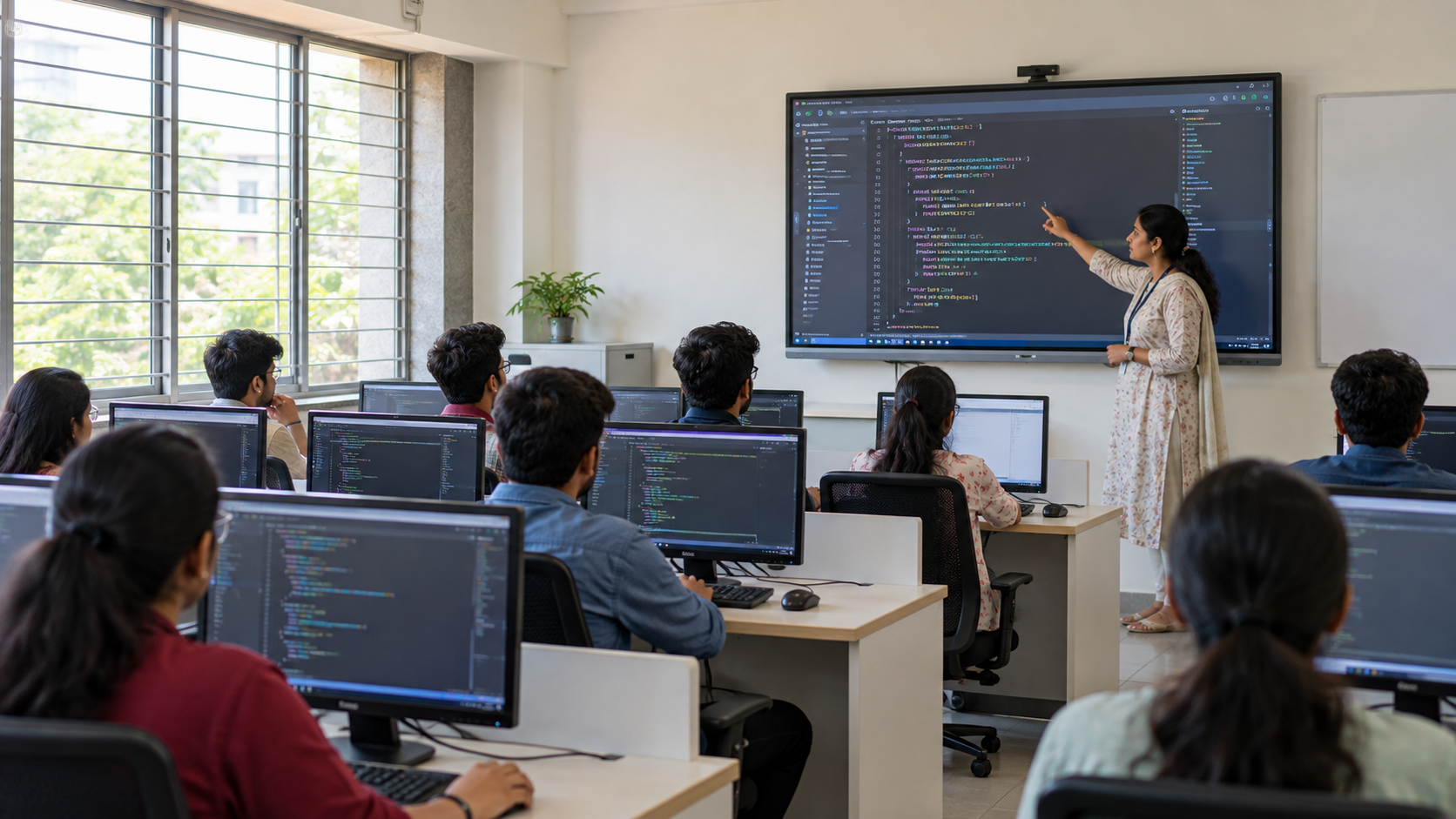
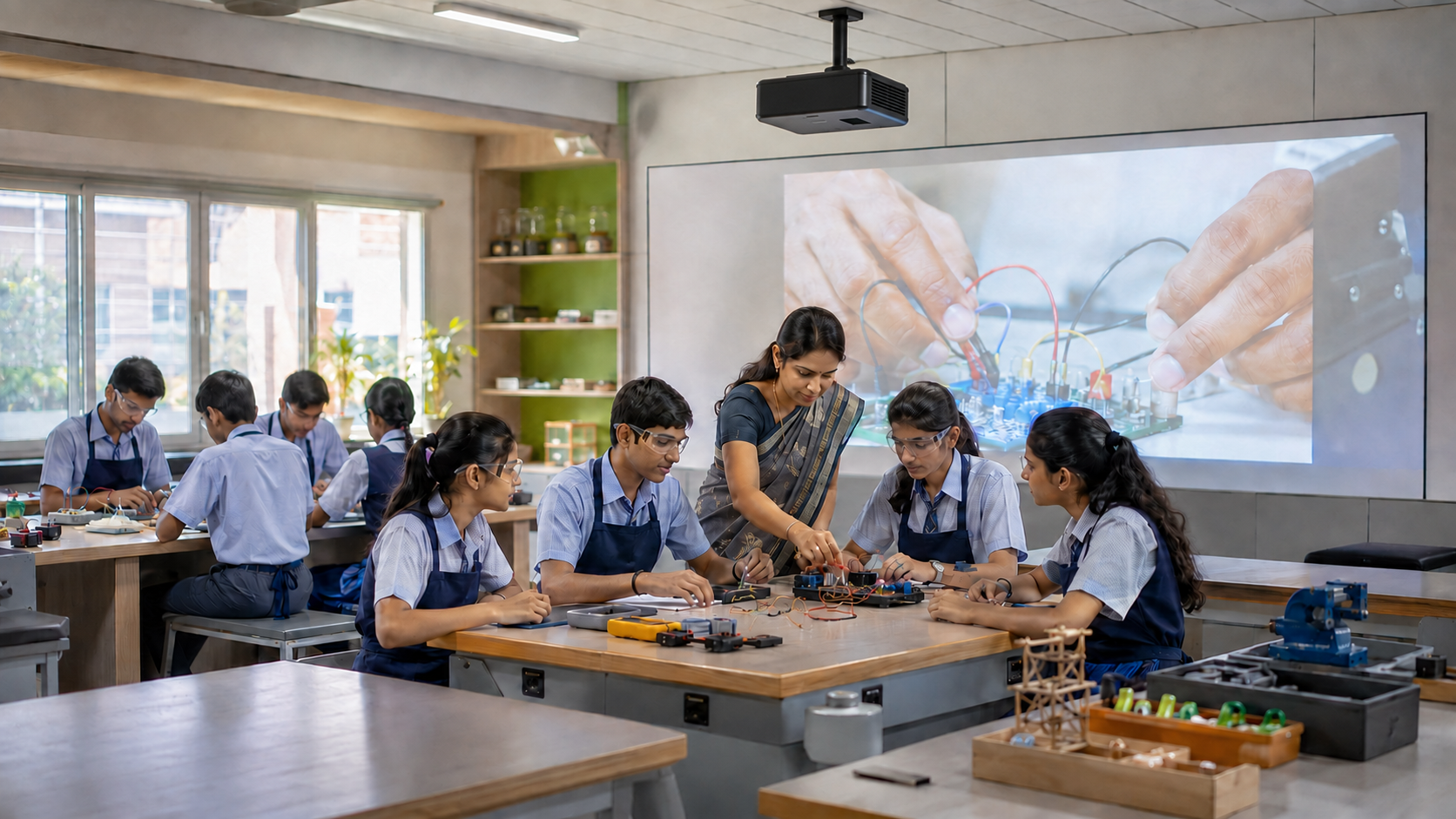
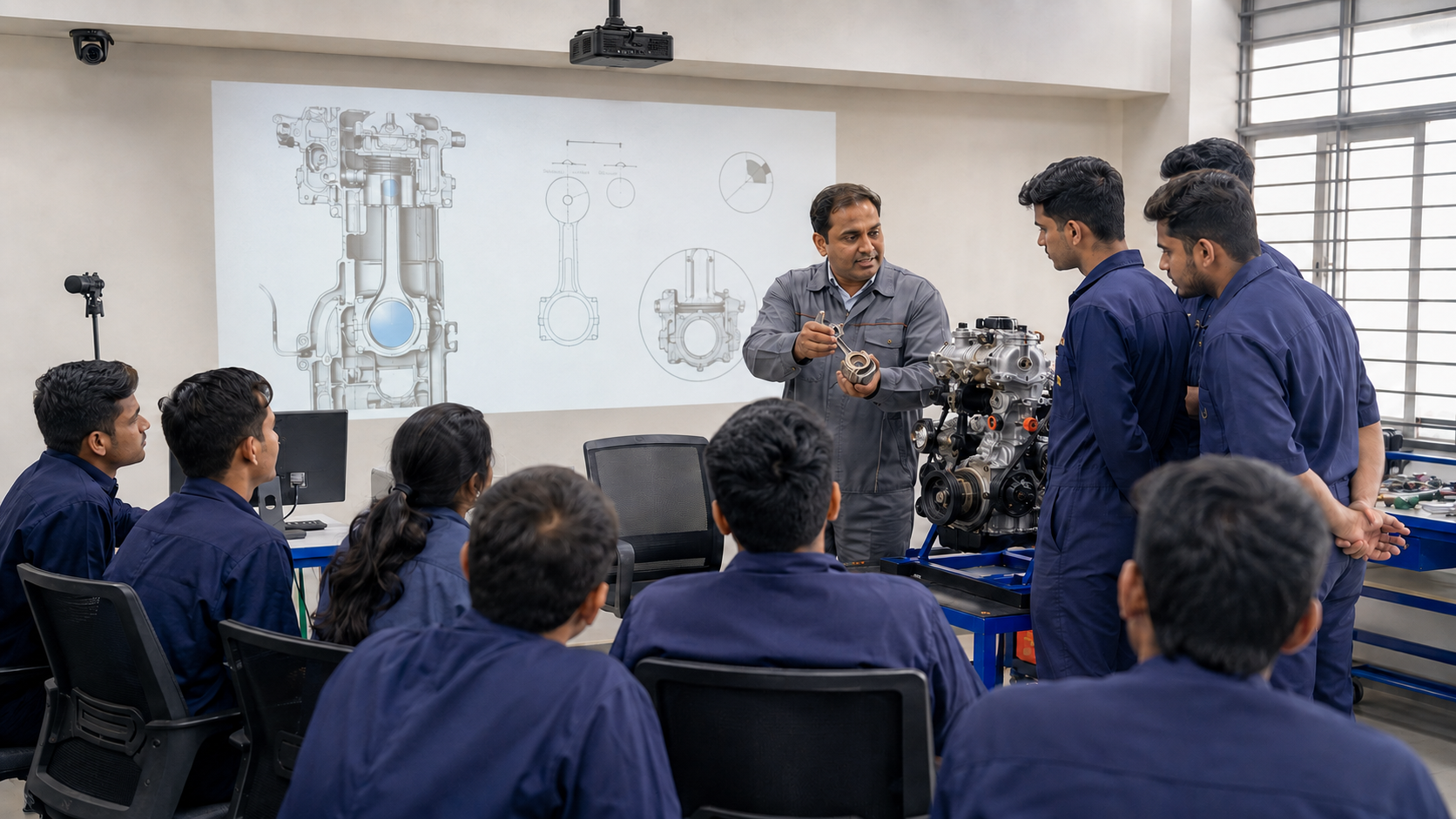
Skills training often has a second focal point: the task being performed. An IT trainer may switch between code, output, and learner questions. An automotive instructor may show a small engine part.
The screen must support these differences. A technical training institute may also run several trades and batch sizes in one room. Vocational training institutes may need equipment that works even when internet access is unstable.
Training providers should define the teaching task before comparing specifications. Our guide to modern skill-training classrooms explains this approach.
What Should Training Institutes Check Before Choosing an Interactive Flat Panel?
1. Can Learners See the Required Detail?
Do not judge visibility using a bright sales slide. Test the actual material used in class.
Open a circuit diagram, code window, or close-up process video. Then view it from the last seat. A fixed panel may feel small in a wide hall.
2. Can the Setup Capture a Practical Demonstration?
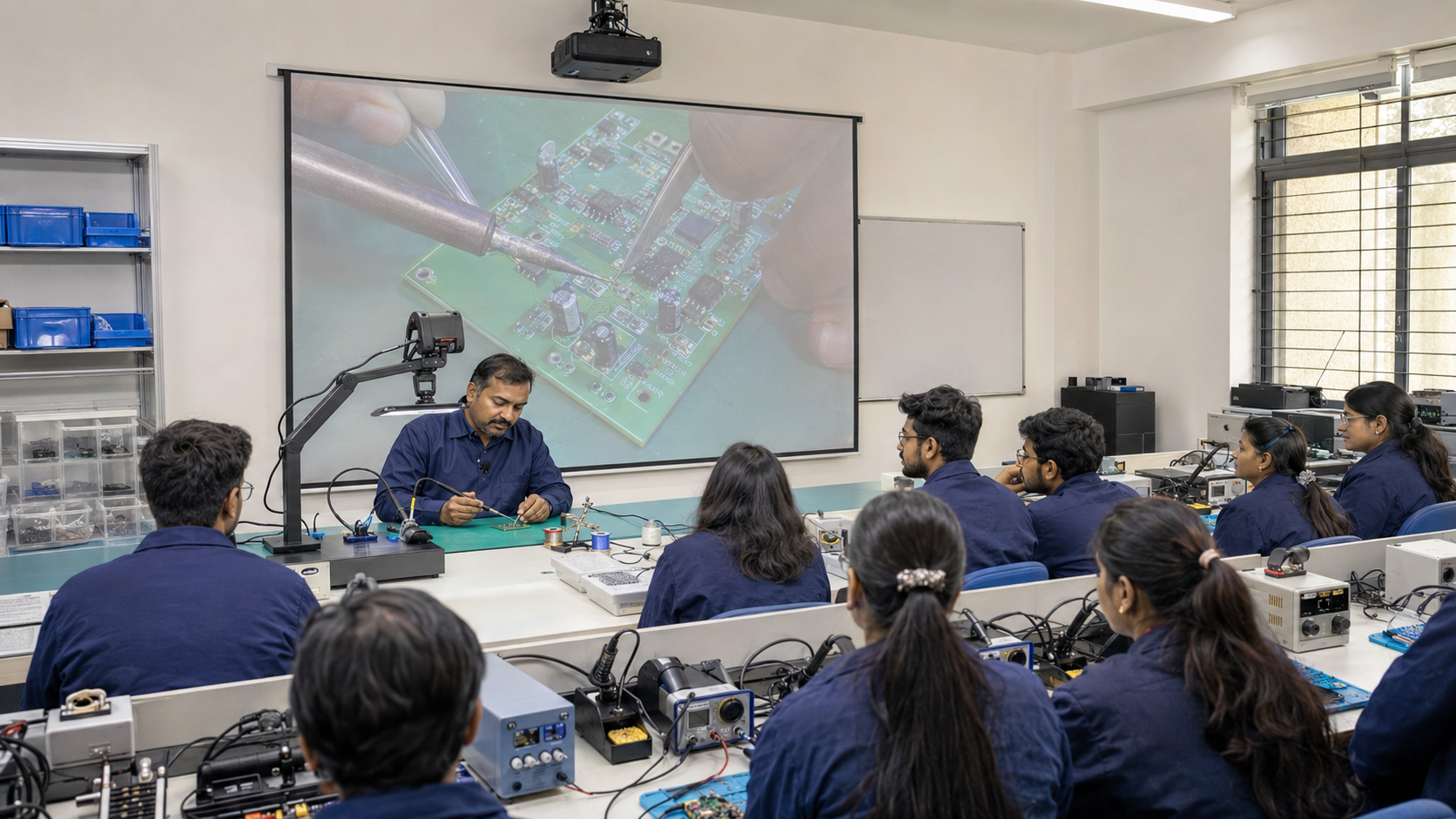
Displaying a prepared video is different from recording a live task. A welding demo needs a view of hand movement and tool position. A coding lesson needs clean screen capture.
Check where the camera sits, what it can see, and whether the trainer can change the view.
Read more about trade-specific capture.
3. Are Audio, Recording and Hybrid Tools Included?
A panel may display a remote learner without capturing the room well. Ask whether cameras, microphones, speakers and video software are included.
Run a real test from the normal teaching position. Review the saved video for voice clarity and visual detail.
4. Can Lessons Be Reused Across Batches?
Small delays add up. If four batches lose eight minutes connecting devices, the institute loses 32 minutes daily. Across 22 working days, that is almost 12 teaching hours monthly.
5. How Many Extra Devices Must Be Managed?
List every item required beyond the panel:
- Computer or OPS module
- Camera
- Microphones and speakers
- Recording software
- Video conferencing tools
- Cables and mounts
- Support and subscriptions
This reveals the true smart classroom equipment requirement and makes quotes easier to compare.
Interactive Flat Panel vs Integrated Classroom Solution
This table compares setup models, not every product. Always verify the model, accessories, and software listed in the quote.
When Is an Interactive Flat Panel Enough?
A standalone panel may be enough when:
- Sessions are mainly presentation-led.
- The fixed display suits the room.
- The institute already owns compatible audio and cameras.
- Recording and hybrid delivery are not priorities.
- Instructors can start each batch without complex setup.
Integrated smart classroom solutions may suit detailed demonstrations, session reuse and remote participation. They can also reduce separate devices and support paths.
Choose the Teaching Workflow Before the Screen
Start with the course, room and trainer. Test visibility, demonstration capture, audio, recording and batch changeovers before approving a purchase.
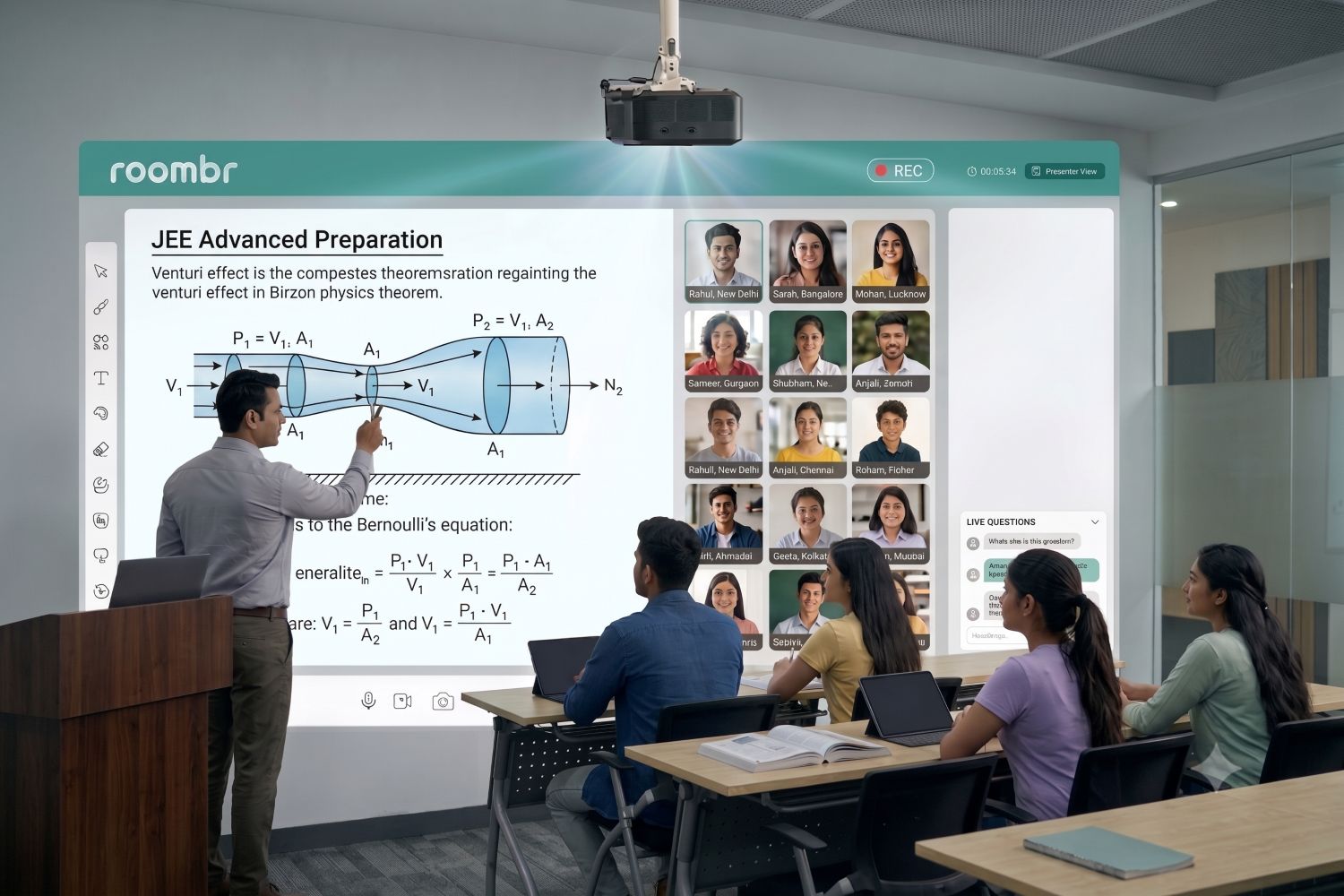
Roombr combines large interactive projection, built-in computing, dual cameras, classroom audio and microphones in one system. See how Roombr compares with an interactive flat panel using the workflows your institute handles every day.
Frequently Asked Questions
1. Can One Interactive Flat Panel Support Different Training Courses?
It may support several courses when the display size, software, and connectivity meet their needs. However, coding, healthcare and technical courses may require different cameras, audio tools or demonstration setups. Institutes should test each teaching workflow before using one configuration across every course.
2. Is an interactive panel suitable for vocational training?
Yes, when it provides clear visuals and supports the required content. For hands-on courses, also test camera coverage, audio capture, recording and close-up visibility before buying.
3. Can an interactive panel record a complete training session?
Some models record on-screen activity. Capturing the trainer, learners and a physical task may require cameras, microphones and suitable software. Test the complete recording workflow.
4. What should a training institute check before buying?
Check visibility, touch response, computing, camera coverage, audio, recording, hybrid tools, connectivity, ease of use, installation, warranty and support. Compare the working setup rather than the screen alone.
See Roombr All-in-One Classroom Solution Work in a Real Training Environment
A classroom solution should prove its value before installation, not after. A Roombr demo lets your team test how instructors can explain, annotate, capture practical sessions, connect remote learners, and move between batches using one integrated system.
You can also experience how Roombr’s interactive screen scales from 50 to 200 inches to suit compact classrooms, larger training rooms, and spacious halls.
Bring a course file, demonstration, or challenge to assess visibility, audio clarity, recording quality, ease of use, and suitability for your training space.
Discuss your room size, existing equipment, and implementation needs with the Roombr team.
Request a Roombr demo and see how it fits your institute.

Foziya Abuwala
Share
Step Into the future of
Education with Roombr