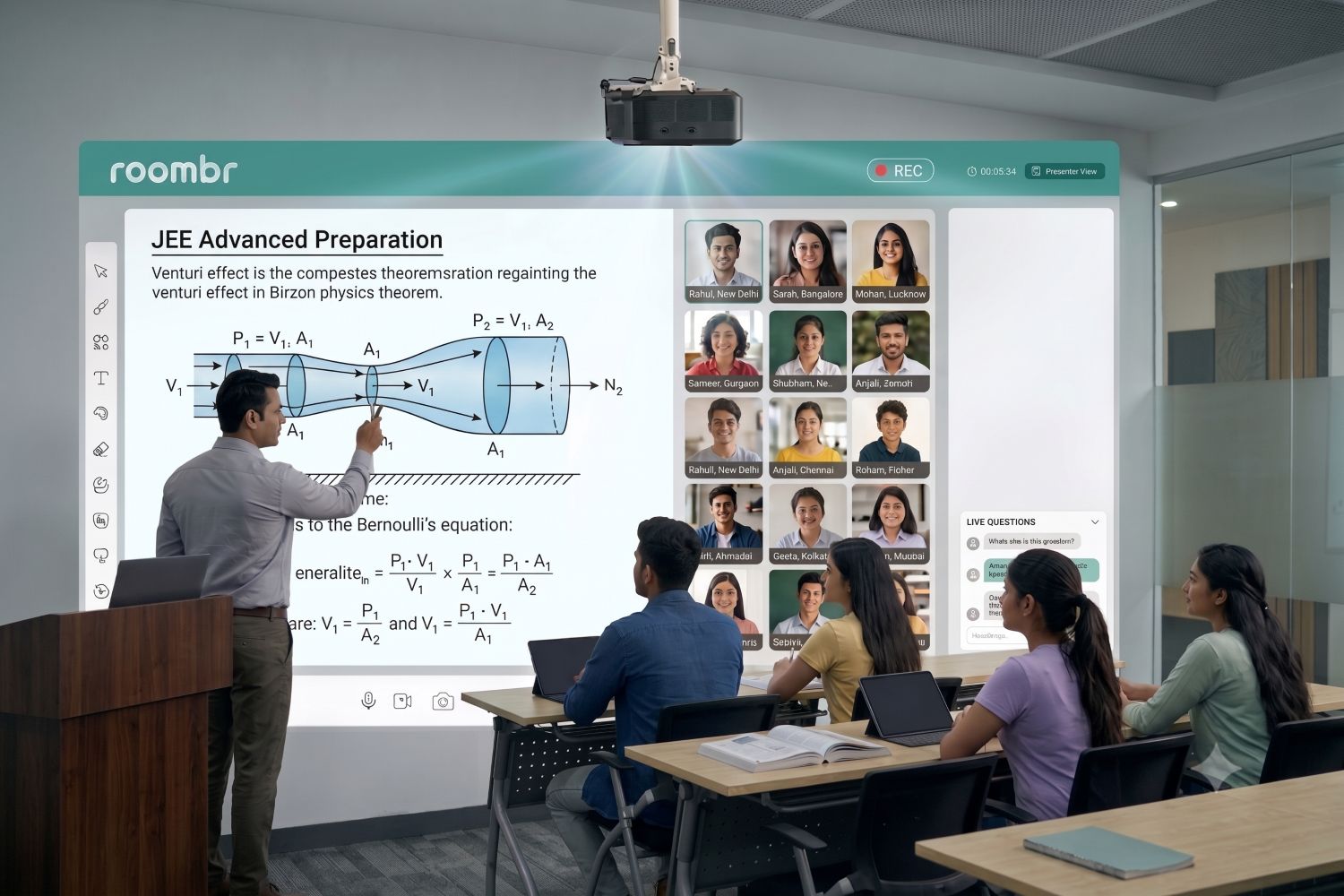

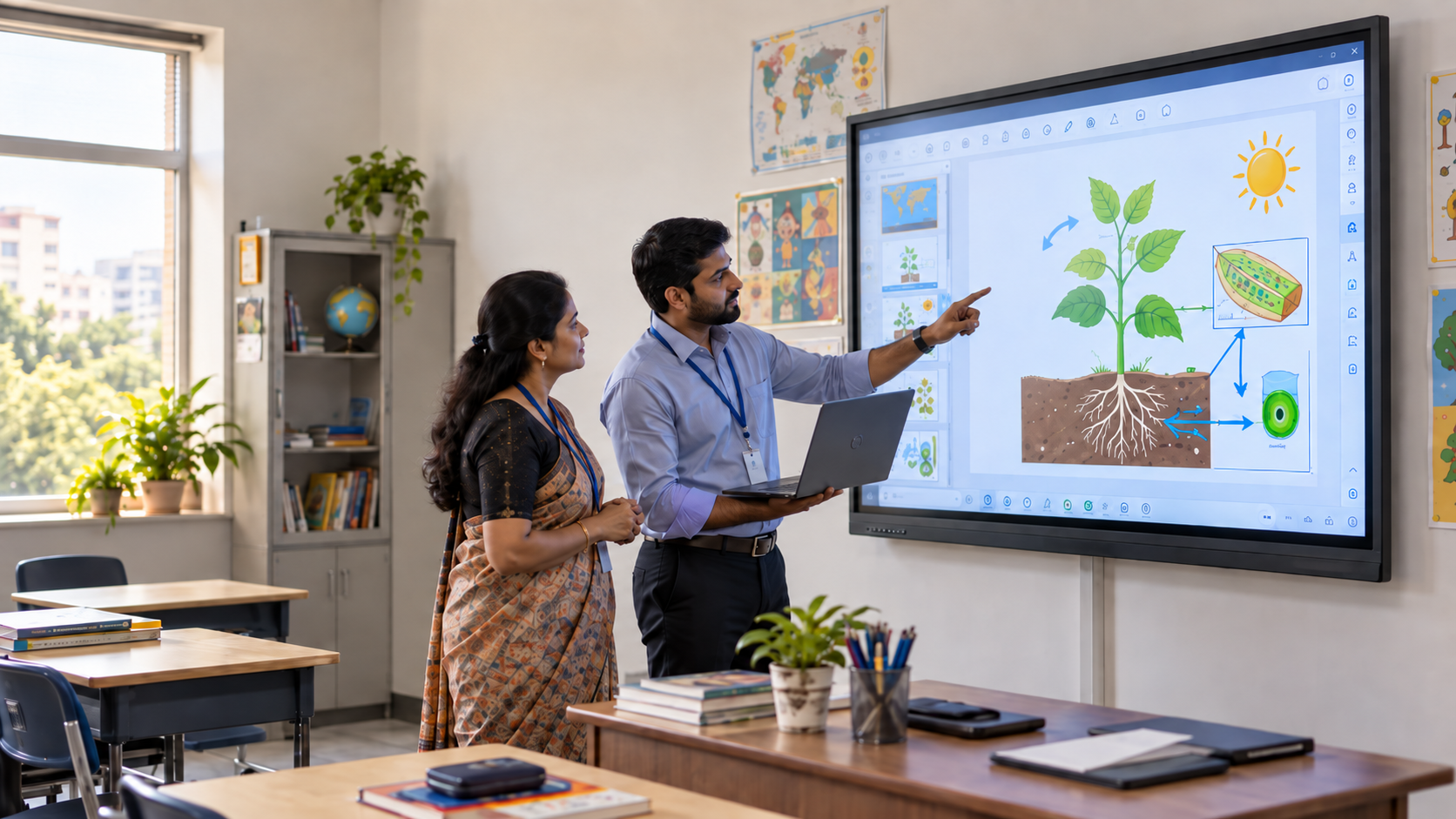
Replacing an interactive whiteboard may look like a hardware decision. For many schools, it is also a content migration decision.
Teachers may have spent years building lessons, diagrams, activities, annotations, videos, and subject resources around the existing board. That library represents hours of teaching work.
When evaluating a replacement interactive whiteboard for schools, the question is not only whether the new display has better specifications. Schools also need to know what will happen to the lesson files teachers already use.
A file may open but lose an interactive element. A presentation may retain its text while changing the layout. Embedded media may depend on files stored elsewhere. In some cases, teachers may be able to view a lesson but not edit it as before.
That is why lesson-file testing should happen before the school approves its next classroom system.
Before You Replace the Board, Inventory the Lessons You Already Have
Start with the content, not the new display.
Ask teachers which digital lessons they use during a normal month. There is little value in testing thousands of archived files that have not been opened for years.
Create a simple lesson-file inventory first.
This exercise helps IT teams separate essential digital classroom resources from content that only needs to remain archived.
It can also reveal whether teachers depend heavily on one software environment or file format.
That matters because classroom migration is rarely as simple as copying old folders onto a new computer.
Which Interactive Whiteboard Files Need Extra Testing?
Not all classroom files carry the same migration risk.
A PDF containing six static pages is very different from a lesson built around movable objects, digital ink, embedded media, and interactive activities.
Native Interactive Whiteboard Files
Some interactive whiteboard applications use their own lesson-file formats.
SMART Notebook, for example, uses the .notebook format. A Notebook file can contain multiple pages, objects, and page-specific properties.
These files may hold much more than static teaching material. Teachers may have added annotations, movable objects, activities, or other features that depend on the original software.
For this reason, native lesson files deserve careful testing before a school changes its classroom system.
Interactive Whiteboard Common File Format
The .iwb format is associated with the Interactive WhiteBoard/Common File Format, or IWB/CFF.
The format was developed to make interactive teaching content more portable across whiteboard applications. Its goal is to allow compatible content to be opened, edited, saved, and exchanged between systems.
However, a common format should not be treated as a guarantee that every lesson will look or behave the same everywhere.
Schools still need to test the files that matter most.
Standard Classroom Documents and Media
Many lesson libraries also contain more familiar formats such as:
- PowerPoint presentations
- PDFs
- Images
- Videos
- Audio files
- Web resources
These formats can provide useful migration options.
For example, SMART Notebook documentation supports importing PowerPoint files. Notebook files can also be exported to formats including PDF and Interactive Whiteboard Common File Format.
However, converting a lesson can change what remains editable or interactive.
A visually correct PDF, for example, may work well for presentation but may not preserve movable objects or software-specific activities.
Use a 5-Part Lesson File Compatibility Test
A useful migration test asks more than one question.
“Does the file open?” is only the beginning.
Before approving a new interactive panel for classroom use, test the following five areas.
1. Open the Editable Source File
Start with the original lesson file whenever possible.
Check whether:
- The file opens correctly
- All pages appear
- Text remains editable
- Objects can still be moved
- Images stay in place
- Teachers can save their changes
Being able to display an old lesson is not the same as being able to continue teaching with it.
If teachers regularly update examples, exercises, dates, or diagrams, editability matters.
2. Test a PDF Version
Next, create or locate a PDF version of the same lesson where possible.
PDF can work well as a reference or presentation fallback because it can preserve the visual structure of a page.
However, do not assume the PDF is equivalent to the original interactive lesson.
Movable objects, quizzes, and other interactive elements may become static.
For important resources, keeping both the editable source file and a stable reference copy can be useful.
3. Test Embedded Media
A lesson can open correctly and still fail halfway through class because the media inside it does not.
Test:
- Video
- Audio
- Hyperlinks
- Web resources
- Animations
- Locally stored media
Suppose a science lesson links to a video stored on an old teacher laptop. Replacing the classroom display will not automatically move that video.
Testing media separately helps expose these hidden dependencies.
4. Check Fonts and Layout
Compare several text-heavy lessons with their originals.
Look for:
- Missing fonts
- Substituted fonts
- Shifted text
- Cropped content
- Overlapping objects
- Changed spacing
- Distorted diagrams
A lesson can technically open while still needing several minutes of repair.
Across hundreds of files, a small formatting problem can become a significant migration task.
5. Test Annotations and Interactive Elements
Finally, test the parts of the lesson that make an interactive board useful during teaching.
Try:
- Digital ink
- Handwriting
- Drag-and-drop objects
- Quizzes
- Reveals
- Movable labels
- Page navigation
- Interactive diagrams
Ask a teacher to use the file as they would during an actual class.
The goal is not just file compatibility. It is teaching-workflow compatibility.
Bring Three Representative Lesson Files to Every Product Demo
Schools do not need to migrate their entire content library before choosing new classroom technology.
Instead, select three representative files.
Avoid selecting three easy files simply because they are convenient.
The third file should deliberately contain features that could expose migration problems.
For example, if science teachers regularly use annotated diagrams, embedded video and movable labels, test that type of lesson.
If mathematics teachers rely heavily on handwriting and interactive diagrams, bring one of those resources.
Testing real classroom material provides better procurement evidence than watching a demonstration built entirely around vendor-created sample files.
What If a Lesson File Does Not Transfer Perfectly?
A failed compatibility test does not automatically mean the new system is unsuitable.
First, identify exactly what failed.
A lesson that loses one interactive activity presents a different problem from a file that cannot be opened at all.
Schools can then consider several practical options.
Keep the Original Software Where Appropriate
If licensing, security, and system requirements allow it, retaining the original lesson-authoring software may help teachers continue using important native files.
Confirm current licensing and technical requirements before including this approach in the migration plan.
Keep a PDF Reference Copy
For lessons built mainly around explanatory pages, diagrams, or written content, a PDF can provide a useful reference version.
It may not preserve all interactivity, but it can help protect important teaching material.
Save Reusable Assets Separately
Images, diagrams, audio, and video can often be retained separately from the original lesson.
This makes them easier to reuse if a high-value lesson later needs to be rebuilt.
Rebuild Only What Matters
Do not automatically rebuild an entire five-year archive.
Prioritize:
- Frequently used lessons
- Curriculum-critical resources
- Difficult-to-recreate material
- High-value interactive activities
Older or rarely used files can remain archived until there is a genuine need to migrate them.
A targeted migration plan can save teachers significant time.
Interactive Whiteboard Replacement Checklist for Schools
Before approving new classroom technology, add lesson compatibility to the procurement checklist.
Complete these checks before large-scale installation.
Once dozens of classrooms have been upgraded, discovering that an entire department's teaching resources require conversion can become far more disruptive.
For procurement teams evaluating interactive displays for schools, lesson compatibility should be part of acceptance criteria rather than a problem teachers discover after installation.
File Compatibility Is Only One Part of Classroom Interoperability
Lesson files matter, but they are only one part of a classroom upgrade.
Schools may also need to check whether the new environment works with existing software, computers, networks, teaching platforms and other institutional systems.
That wider issue is covered in Roombr's guide to classroom interoperability.
For an interactive whiteboard replacement, keep the file test as a separate procurement requirement.
A classroom system may meet wider IT needs while still creating unnecessary work if teachers cannot reuse important lessons efficiently.
Questions to Ask Before Buying the Replacement System
Procurement discussions should go beyond screen size, resolution, and touch specifications.
Ask vendors practical questions about the content teachers already use.
Schools reviewing questions before buying an interactive display can add these content-specific checks to the broader hardware evaluation.
A practical question to ask at this stage is:
“Can we bring our own lesson files to the demo?”
If the answer is yes, take advantage of it.
Replacing Hardware Should Not Mean Rebuilding Every Lesson
Teachers' existing lesson libraries are part of a school's classroom resources.
They may contain years of subject knowledge, explanations, activities and materials refined through repeated teaching.
When schools replace an interactive whiteboard, preserving that work deserves attention alongside hardware specifications.
Roombr Digital Classroom combines interactive teaching capability with computing, cameras, audio, and other classroom functions in an integrated setup.
However, compatibility with an individual legacy lesson file can depend on its format, original software, and features.
Schools should therefore test important existing files on the proposed setup instead of assuming universal compatibility.
The goal is simple.
Before procurement, teachers and IT teams should know:
- What can be reused directly
- What may need conversion
- What may lose functionality
- What may need rebuilding
That makes the transition easier to plan.
Key Takeaway
Replacing an interactive whiteboard is not only about what goes on the classroom wall next.
It is also about protecting the teaching resources the school already has.
Before choosing a new smart board, interactive display, or other classroom system, inventory the lessons that matter most.
Test the original files, editable content, PDF fallbacks, embedded media, fonts, and interactive elements.
Most importantly, perform those checks on the proposed system before procurement.
A small compatibility test can reveal whether the transition is straightforward, requires selective conversion, or needs a more detailed migration plan.
That gives teachers, IT teams, and procurement committees a clearer basis for making the replacement decision.
Frequently Asked Questions
1. Can old interactive whiteboard files work on a new interactive display?
They may. Compatibility depends on the file format, original software, and destination system. Test native files, editable content, embedded media, and interactive elements before making a procurement decision.
2. What happens to SMART Notebook files if a school replaces a SMART Board?
SMART Notebook uses the .notebook file format. Whether an existing lesson can be reused on a new classroom system depends on the software available and how the school needs to open, edit, or present the file.
Before replacing the current system, test a few representative .notebook files on the proposed setup to check how well they support your teaching workflow.
3. Can interactive whiteboard lessons be converted to PDF?
Some lesson software allows files to be exported to PDF. SMART Notebook, for example, supports PDF export. PDF can preserve the visual content of a lesson, but interactive or software-specific elements may become static.
4. What is an .iwb file?
.iwb is associated with the Interactive WhiteBoard/Common File Format developed to improve the exchange of interactive teaching content between compatible whiteboard applications.
5. Should schools test lesson files before buying an interactive display?
Yes. Test at least three files: one simple lesson, one typical everyday lesson, and one complex interactive resource. This gives IT and procurement teams a clearer view of potential migration work.
Bring Three Existing Lesson Files to a Roombr Demo
A classroom technology demo should show more than a blank writing surface or a prepared sample presentation.
Bring three lessons your teachers already use: one simple file, one everyday lesson, and one complex interactive resource.
Use the demo to see how your existing content fits the proposed teaching workflow. Check the software your teachers require, how the files behave, and whether any conversion or rebuilding may be needed.
Roombr Digital Classroom combines interactive teaching, computing, cameras, audio, and other classroom functions in one integrated setup. Compatibility with individual legacy files should still be tested using your actual content.
Before replacing your current interactive whiteboard, test the files your teachers depend on most.

Foziya Abuwala
Share
Step Into the future of
Education with Roombr