
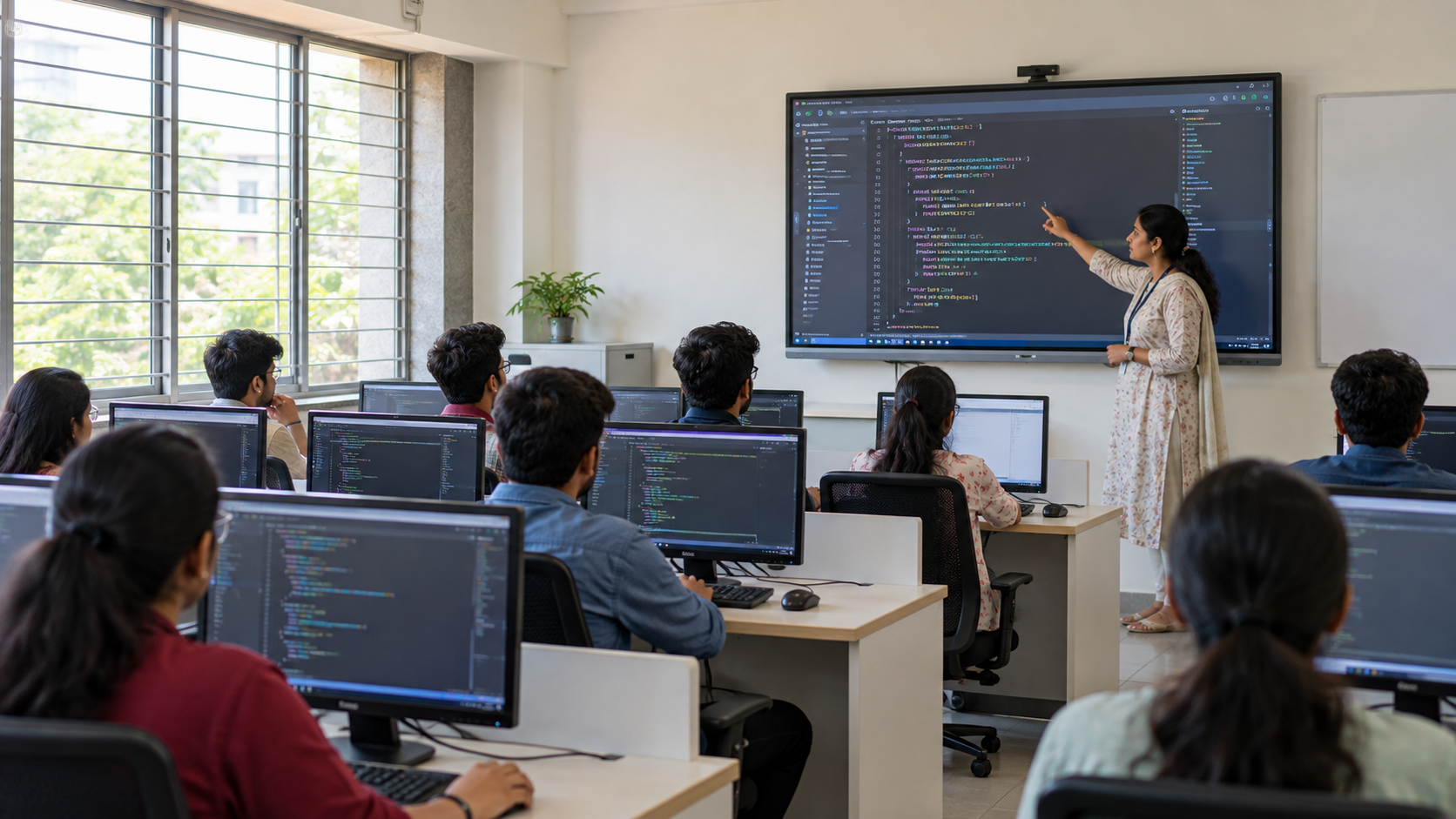
A display that makes a PowerPoint slide look clear may still fall short when used for coding or software instruction.
In a computer lab, students may need to follow line numbers, variable names, menus, terminal commands, spreadsheet cells, cursor movement, and error messages from their seats. That makes choosing an interactive flat panel for a computer lab different from selecting a display mainly for presentations.
Before buying, schools, colleges, and training institutions should test the display with the actual software, files, and teaching workflow their instructors use. They should also consider whether a standalone panel is the right architecture for the room or whether a more integrated digital classroom setup would fit better.
Why Computer Labs Need a Different Display Test
Typical classroom display demonstrations often use colourful presentations, videos, or large handwriting. These may show general image quality and interaction, but they do not fully represent a coding or software lesson.
A computer-lab instructor may move between:
- an IDE or code editor,
- a browser,
- a PDF,
- a command-line terminal,
- a spreadsheet,
- a database interface,
- and other subject-specific software.
Much of this content contains smaller text and tightly packed controls.
A student may see the overall screen clearly but still struggle to read a compiler message, distinguish similar characters, or follow which menu option the teacher selected.
So the useful question is not simply:
“Can students see the screen?”
It is:
“Can the student at the furthest workstation clearly read the smallest information needed to follow the lesson?”
A Shared Teaching Display Does Not Replace Student Computers
A large interactive display and student computers serve different purposes in a lab.
The shared display helps an instructor demonstrate processes to the whole group. Student machines remain necessary for writing code, running applications, completing exercises, and practising independently.
For example, an instructor might display a Python program, explain why it is producing an error, and highlight the incorrect line. Students can then correct the same issue on their individual computers.
When planning a computer lab, evaluate the shared teaching layer and learner computing layer separately.
This keeps procurement focused on what the main display needs to accomplish.
Test the Actual Coding or Software Lesson Before You Buy
The most useful computer-lab demo is one built around the way instructors teach.
Bring the applications, files, and devices normally used in class. Then test the lesson workflow from beginning to end.
1. Open the Software Teachers Use
Start with the normal teaching environment.
Depending on the course, this may include:
- a code editor or IDE,
- spreadsheet software,
- browser-based coding tools,
- database software,
- design or engineering applications,
- or a command-line interface.
The goal is to find out whether the proposed setup can support the instructor's real workflow.
Compatibility may depend on the operating system, software version, permissions, external hardware, or network environment, so specific requirements should be verified before deployment.
2. Display Real Code at Normal Editor Settings
Do not judge code visibility after dramatically increasing the font size for the demo.
Open an actual source-code file using settings close to those used during normal instruction.
Check whether students can distinguish:
- line numbers,
- brackets,
- variable names,
- indentation,
- comments,
- syntax highlighting,
- and longer statements.
If the instructor must constantly enlarge content to make it readable, less information may fit on the teaching surface at once.
3. Check Visibility From the Last Workstation
Move away from the front.
Open something challenging, such as source code, a spreadsheet, a settings window, or a small error message, and evaluate it from the furthest student position.
Room depth, workstation placement, display area, lighting, and viewing angle can all affect usability.
For the broader sizing decision, see Roombr's guide to interactive display size.
4. Check Cursor and Pointer Visibility
Software lessons often require students to follow small movements on screen.
Ask the instructor to:
- move between menus,
- highlight text,
- select individual lines,
- open dropdowns,
- and point to small controls.
Students should be able to follow these actions without repeatedly losing track of the cursor.
5. Run and Debug Code Live
Coding instruction rarely involves static code alone.
Test a simple sequence:
open code → run → view output → identify error → edit → run again
Pay attention when the display changes from an editor to a terminal or output window. Important text may become smaller or appear in another area of the interface.
This test better reflects what students will need to follow during class.
6. Switch Between Teaching Resources
An instructor may move from a presentation to an IDE, then to documentation in a browser, a PDF, or a terminal.
Run through these transitions during the demo.
The workflow should remain practical when switching among the resources teachers use regularly.
7. Connect the Instructor's Actual Device
If teachers normally use institution-issued or personal laptops, test one.
Use the connection method the institution expects to rely on rather than only the vendor's prepared setup.
Depending on the existing equipment, this may involve HDMI, USB-C, wireless screen sharing, or another connection method.
Exact compatibility should be verified for the planned devices and configuration.
For more detail, see Roombr's guide to HDMI, USB-C and screen sharing.
8. Test Annotation During a Software Demonstration
Interactive annotation can help when an instructor wants to circle a syntax error, underline a formula, mark a UI control, or highlight part of a diagram.
Test whether this works naturally during the software lesson.
The interaction method should support the explanation without making it difficult to return to the underlying application.
9. Check Software Installation and Administrator Permissions
IT teams should also establish:
- who can install software,
- whether administrator access is required,
- how applications are updated,
- whether teachers can add necessary tools,
- and whether institutional security policies restrict certain applications.
Do not assume an application will work simply because it runs on another classroom computer. Compatibility can depend on software, hardware, permissions, and the network environment.
Computer-Lab Display Test Checklist
This gives a procurement team much more useful evidence than comparing product brochures alone.
What Should You Check for Rear-Seat Visibility?
Screen size matters, but computer-lab visibility depends on more than dimensions.
Consider:
- room depth,
- workstation arrangement,
- viewing angles,
- display area,
- typical font size,
- software interface density,
- ambient light,
- and physical obstructions.
A monitor on a student's desk, for example, may partly obstruct the front teaching surface.
Instead of asking whether the display generally looks large enough, open the smallest important content students will regularly need to read.
The real test is whether the student in the most difficult viewing position can still follow the lesson.
Interactive Flat Panel or Projection-Based Classroom System for a Computer Lab?
An interactive flat panel is one way to create a shared digital teaching surface. Schools and colleges can also evaluate projection-based interactive classroom systems.
The better fit depends on the room, required teaching area, infrastructure, and overall teaching workflow.
Neither approach should be selected only because one specification looks stronger on paper.
The institution should compare how each setup performs with the same lesson and from the same student positions.
For a more detailed comparison, see interactive projector vs interactive panel.
Look Beyond the Display When Planning a Computer Lab
When a procurement discussion begins with “we need a smart board,” the display can easily become the entire decision.
But a computer-lab teaching setup may also involve:
- computing,
- interaction,
- audio,
- instructor inputs,
- connectivity,
- cameras or microphones where required,
- software access,
- teacher usability,
- and room infrastructure.
A conventional IFP primarily addresses the shared display and interaction requirement, although individual configurations may include additional capabilities.
An integrated digital classroom system approaches these requirements as parts of a wider teaching environment.
That distinction is worth considering before committing to one product category.
Where Roombr Fits Into a Computer-Lab Teaching Setup
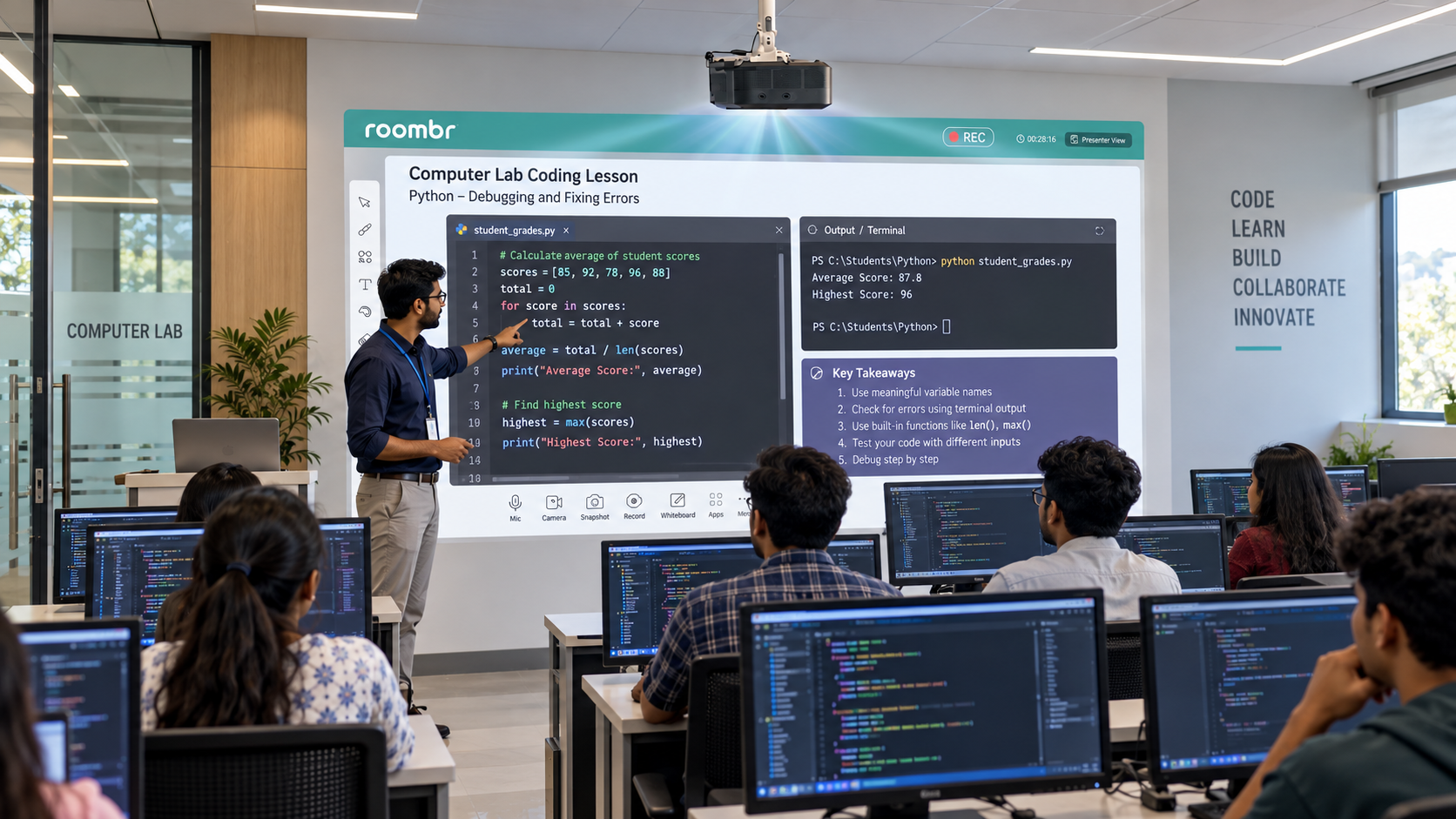
Roombr is not an interactive flat panel.
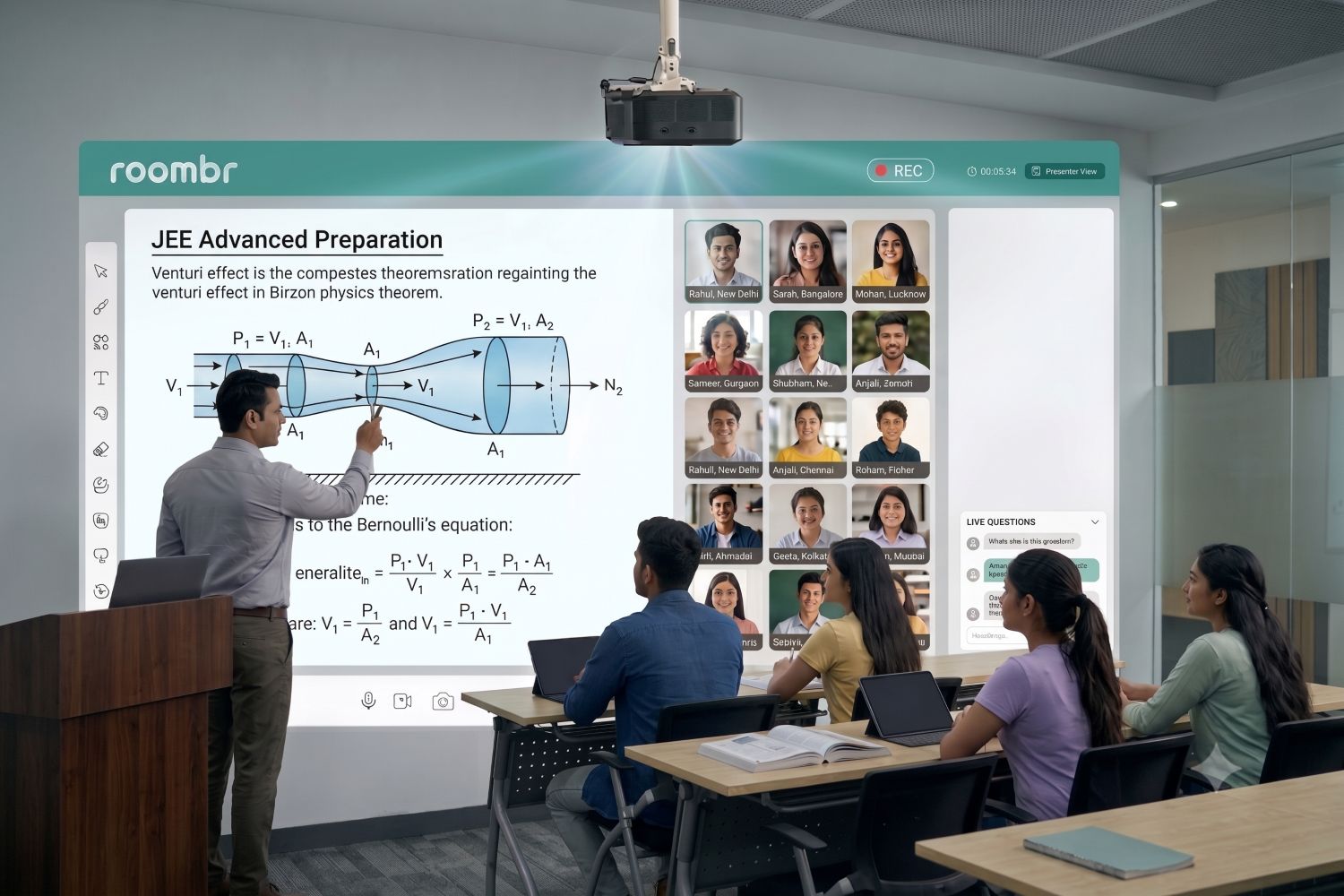
It is an integrated, projection-based digital classroom system designed around the broader teaching environment.
With Roombr Pro, the classroom wall becomes an interactive teaching surface rather than relying on a conventional fixed-size panel. The system brings projection, computing, interaction, and other classroom technologies into one setup.
Roombr Pro includes Full HD projection and a Windows 11 computing unit with an Intel i5 processor, 16 GB RAM and 1 TB SSD, along with integrated audio, cameras and microphones.
For a computer lab, however, specifications alone should not decide the purchase.
Institutions should test the applications, files and teaching workflows they intend to use. Application-specific compatibility, connectivity and configuration requirements should be confirmed with the Roombr team rather than assumed.
The buying question then becomes broader than:
“Which screen should we purchase?”
It becomes:
“Which classroom setup supports the way our instructors teach?”
Run Your Own Computer-Lab Demo
Before finalising the setup, create a short test lesson using:
- a typical source-code file,
- the instructor's normal device,
- relevant software,
- a PPT or PDF,
- and a browser-based resource if regularly used.
Check the setup from the teacher's position and from actual student seating.
Ask:
- Can students read code without unusually large text?
- Can they follow the cursor and small UI elements?
- Are error messages and terminal output readable?
- Can the instructor switch between applications smoothly?
- Does the required device connect correctly?
- Can interaction or annotation support the lesson?
- Does the setup suit the room and normal teaching method?
Resolve unclear points before procurement rather than after installation.
Conclusion
Choosing an interactive flat panel for a computer lab should begin with the lesson rather than the product brochure.
Test real code, software interfaces, cursor visibility, and student viewing conditions. Then evaluate the wider classroom architecture.
A useful computer-lab setup is one that fits the room, existing infrastructure, and the way instructors actually teach.
Frequently Asked Questions (FAQs)
1. Is an interactive flat panel suitable for a computer lab?
It can be if the display suits the room and makes real computer-lab content readable from student seating. Test source code, software interfaces, cursor movement, and terminal output rather than relying only on presentation slides.
2. Does an interactive flat panel replace computers in a computer lab?
No. A shared interactive display supports whole-class instruction and demonstrations. Students still need individual computers for coding, software practice, and other hands-on lab work.
3. What should colleges test before buying a display for coding classes?
Test source code, software interfaces, terminal output, cursor visibility, application switching, instructor-device connections, and rear-seat readability. Use the same files and applications teachers normally use.
4. Is a projector or interactive flat panel better for a computer lab?
There is no universal answer. The better fit depends on room size, viewing distance, teaching area, infrastructure, interaction requirements, and overall classroom architecture. Where possible, compare both using the same real lesson.
Test Your Coding or Software Lesson With Roombr
If your school or college is evaluating technology for a computer lab, use the demo to test your real teaching workflow.
Bring a sample coding lesson, required software, lesson files, or the instructor device and evaluate readability, interaction, application switching, and visibility from normal student positions.
Roombr Digital Classroom provides an integrated, projection-based approach rather than a conventional interactive flat panel.
Request a Roombr demo to test your computer-lab workflow and discuss the room, teaching requirements, and deployment needs before deciding on the final setup.

Foziya Abuwala
Share
Step Into the future of
Education with Roombr