

In today’s digital-first classrooms, interactive flat panels are quickly replacing traditional whiteboards. But there’s one component that often goes unnoticed, even though it plays a big role in performance — the OPS module. If you’ve come across the term OPS for interactive panel while evaluating digital classroom solutions, this post is for you.
Let’s explore what OPS is, how it works with interactive panel boards, and why it matters for Indian schools and universities planning long-term investments in classroom technology.
What is OPS in an Interactive Flat Panel?
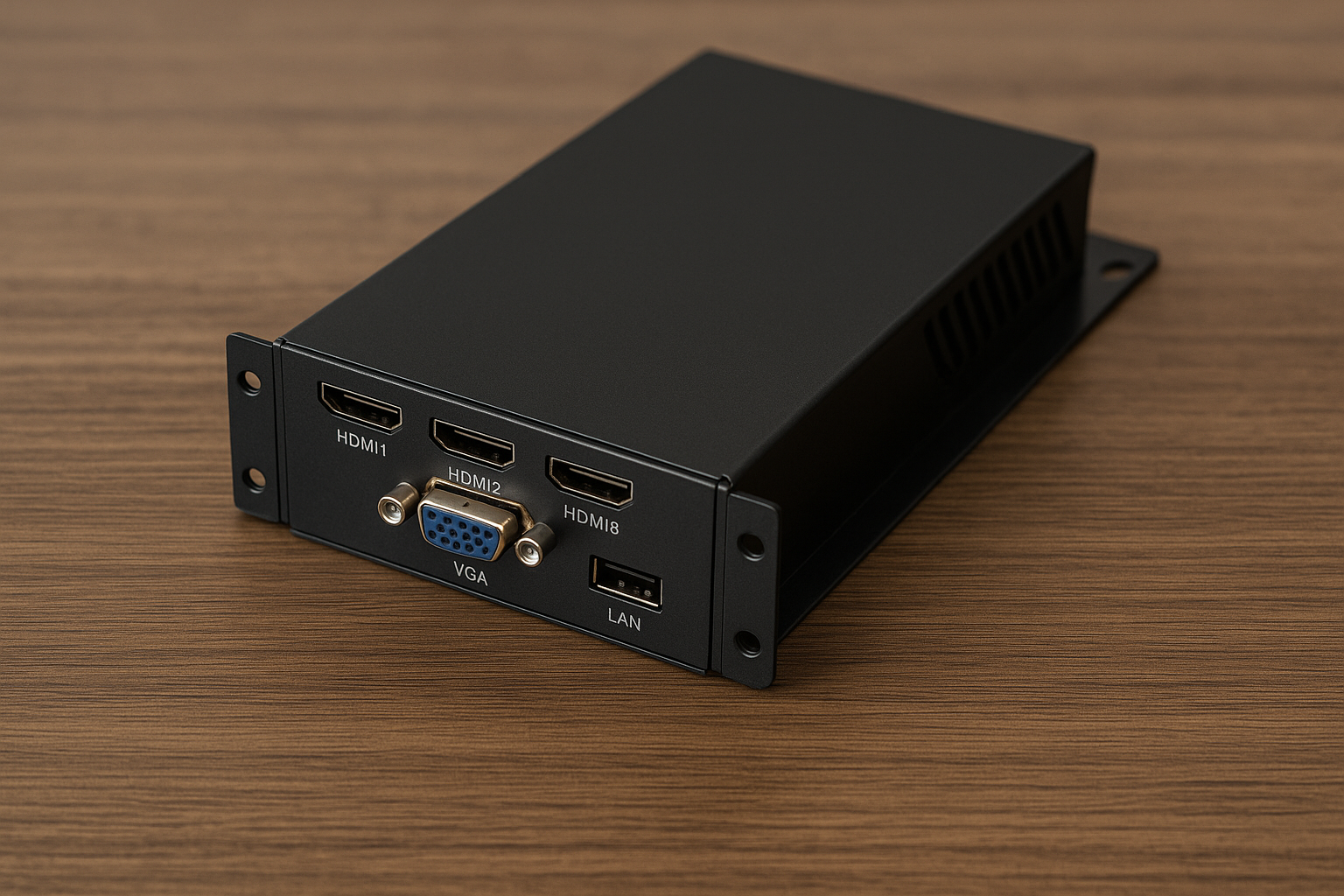
OPS stands for Open Pluggable Specification. It’s an industry standard developed by Intel to simplify the integration of computing hardware into flat panel displays. In simpler terms, OPS is a slot-in PC module that can be plugged directly into an interactive flat panel display.
For an interactive panel, OPS works like a built-in computer that lets the display run Windows applications without relying on a separate laptop or desktop.
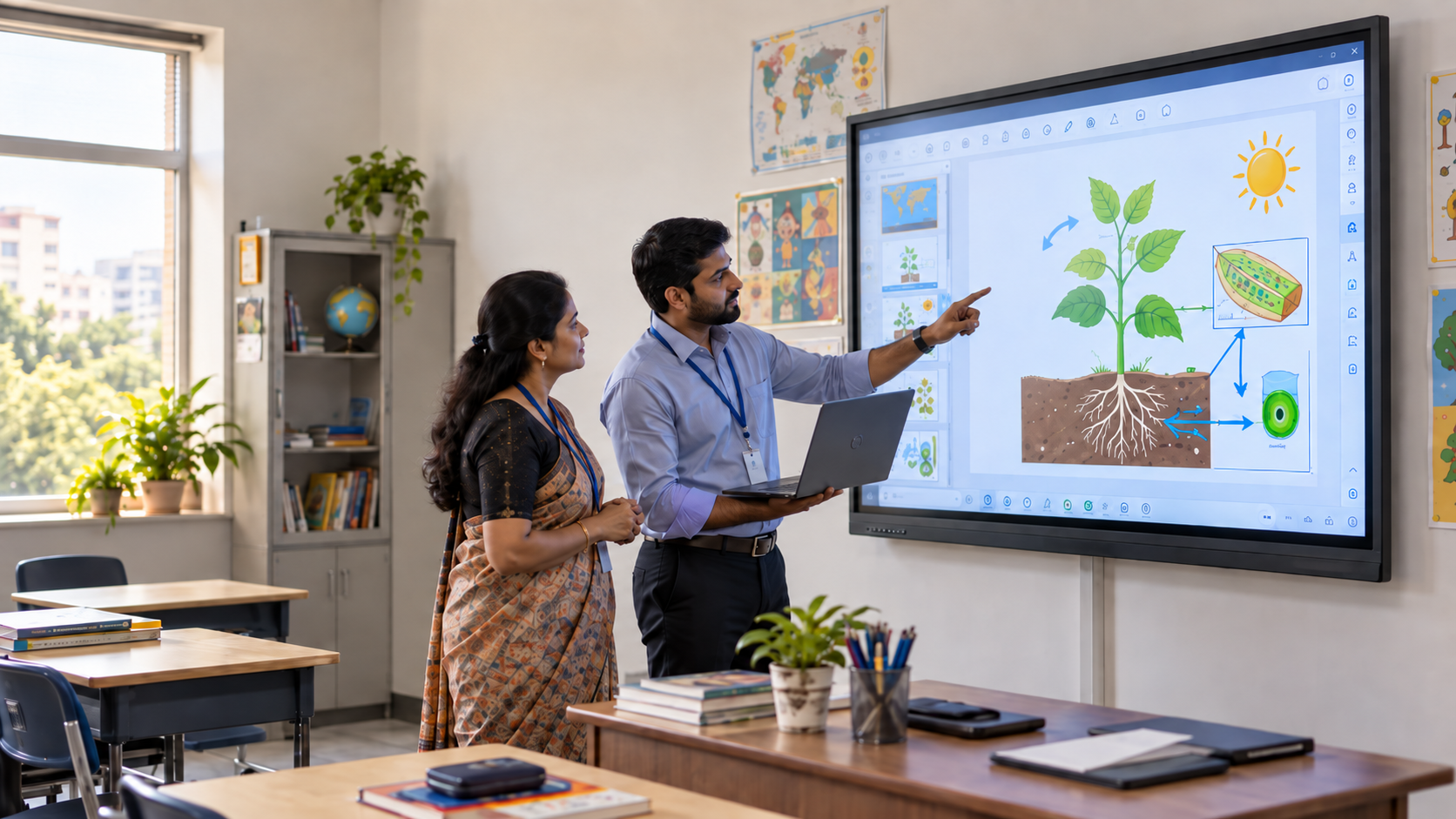
Think of it as a mini computer that slides into the display itself. Once installed, the OPS module turns the panel into a fully functional system capable of running applications as an all-in-one device. Teachers can run presentations, stream educational videos, or open digital textbooks without switching devices or juggling wires.
Built-in OS vs OPS vs Laptop: Which Does Your Classroom Need?
Not every classroom needs an OPS module. The right setup depends on the applications teachers use, how the panel will be connected, and whether the institution already provides laptops or desktops. Here is a simple way to compare the three common options.
For external-device setups, review our guide to interactive panel connectivity.
Why OPS Matters in Digital Classrooms
Most classrooms today are evolving into blended learning spaces. The interactive panel board has become the anchor for smart lessons, visual content, and student engagement. Here’s where OPS makes a real difference.
In a school or college, time is valuable. Booting up systems, fixing cable issues, or troubleshooting external connections can interrupt learning. With OPS, everything is compact and internally connected. You switch on the panel, and it’s ready to teach. That kind of simplicity helps both teachers and IT teams.
Top Benefits of OPS for Interactive Flat Panels
1. No Extra Devices Required
With an OPS module, there’s no need to connect a separate computer, the panel handles everything on its own. The PC is built into the panel, which means fewer wires, less clutter, and more mobility.
2. Integrated Computing for Classroom Tasks
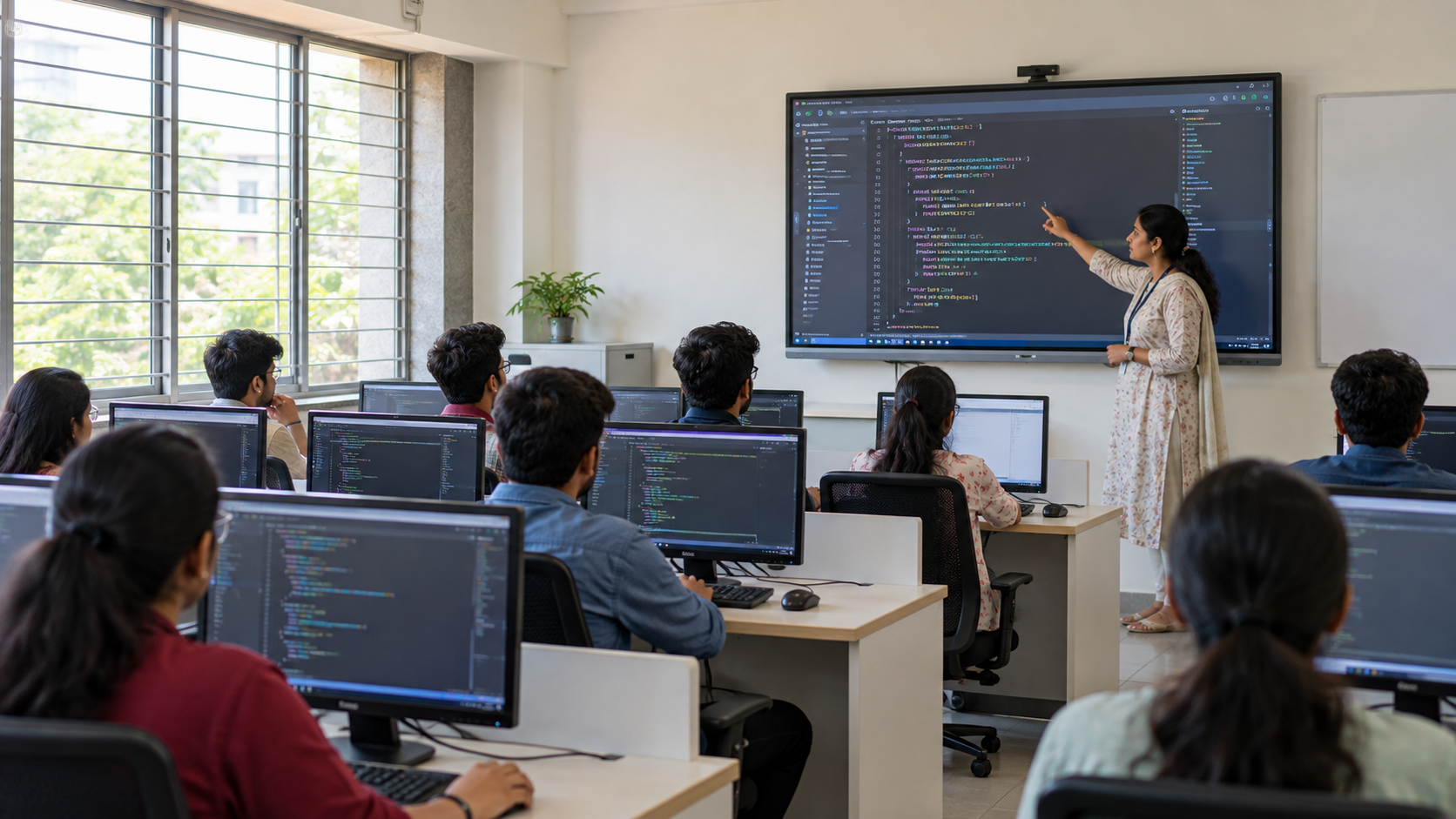
OPS gives the interactive panel its own Windows computing environment, so teachers can open presentations, browse the web, and run classroom apps without connecting a separate laptop. Performance will still depend on the module’s processor, RAM, storage, and software requirements.
3. Simplified Maintenance
IT teams can manage the computing module separately from the display. If the OPS needs servicing or upgrading, it can often be replaced without replacing the interactive flat panel itself.
4. Better Multimedia Support
High-quality audio and video are important for digital learning. A suitably configured OPS module can support HD video playback, interactive applications, and multimedia content directly on the panel without requiring a separate computer.
5. Long-Term Flexibility
OPS can make future computing upgrades easier because the module can be changed independently of the display. This may help institutions extend the useful life of the panel when computing requirements change.
How to Install an OPS Module to an Interactive Flat Panel
1. Locate the OPS Slot
Check the side or back of the interactive flat panel for the dedicated OPS slot.
2. Insert the Module
Align the OPS module correctly with the slot and slide it into place according to the panel manufacturer’s instructions.
3. Secure the Module
Use the supplied screws or locking mechanism, if provided, to keep the module firmly in place.
4. Power On the Panel
Turn on the display and check whether the OPS module is detected correctly.
5. Complete the Setup
Configure the operating system, network connection, and required teaching applications before classroom use.
How to Choose the Right OPS for Interactive Panel
When selecting an OPS for your interactive panel, consider your classroom’s specific needs. For instance:
- Schools may only need basic modules for daily lessons and digital textbooks.
- Higher education institutions might benefit from modules with more processing power, ideal for simulations, video lectures, or design software.
Here’s what to check:
- Processor: Match the processor to the applications teachers need to run.
- RAM: Check whether the memory is sufficient for your typical classroom workload and multitasking needs.
- Storage: Consider how much local storage is required for software, lesson files, and media.
- Operating system: Confirm that the OS supports your required teaching applications and institutional software.
- Compatibility: Make sure the OPS module is supported by your interactive panel model.
For a deeper hardware-level comparison, see our OPS technical guide.
Do All Interactive Flat Panels Come With OPS?
No. Some interactive flat panels include a built-in operating system, while others support an optional OPS module for Windows-based computing.
Whether you need OPS depends on how the panel will be used. If teachers only need whiteboarding, web access, videos, or basic classroom apps, the built-in OS may be enough. If the institution needs Windows-specific applications or prefers an integrated PC setup, an OPS module may be useful.
Before buying, confirm whether OPS is included, optional, or sold separately, and check that the module is compatible with the panel model.
Does Every Interactive Panel Need OPS?
No. If the panel’s built-in operating system supports the applications and teaching workflow your institution needs, an OPS module may not be necessary. OPS is more useful when teachers need Windows-based applications or an integrated PC environment directly within the panel.
Test Your Classroom Setup Before You Decide
Choosing between a built-in OS, OPS module, or external laptop depends on the applications and workflows your teachers actually use.
Book a Roombr demo to test your required teaching apps, classroom software, and day-to-day workflow on the actual setup before making a procurement decision.

Foziya Abuwala
Share
Step Into the future of
Education with Roombr