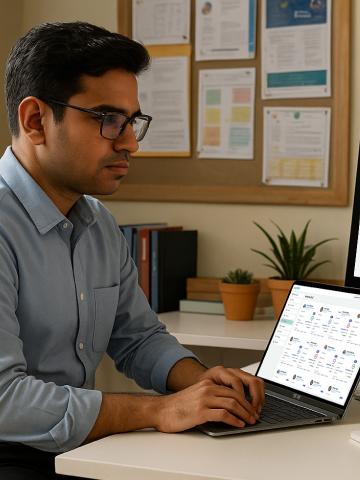


A digital classroom may look impressive during a demo with fast, stable Wi-Fi. But that is not always the environment teachers work in every day.
For schools, colleges, and training centers with slow or inconsistent internet, the more useful question is whether teaching can continue when connectivity weakens or disappears temporarily.
That is why low-bandwidth digital classroom equipment should be evaluated through real teaching tasks, not just an internet speed test. Schools need to know which activities can continue locally, which depend on the internet, and what happens when the connection returns.
What Should Still Work When the Internet Slows or Drops?
A digital classroom does not necessarily use the internet for every teaching task.
Opening a locally stored presentation is different from streaming a video. Writing on an interactive teaching surface is different from accessing a cloud application. A live hybrid class has different connectivity needs from showing a saved PDF.
This distinction matters when schools evaluate a digital classroom with unreliable internet.
Instead of asking only, “Does this system work offline?”, ask a more useful question:
Which parts of our normal lesson can continue when the internet is unavailable, and which cannot?
The answer will depend on the classroom system, software, file location, and teaching applications being used.
8 Teaching Tasks to Test in a Low-Bandwidth Digital Classroom
Use the same teacher, lesson files, and resources your institution normally uses. Then test what happens as connectivity changes.
This test provides more useful information than evaluating a system only under ideal demo-room conditions.
Schools planning a hybrid classroom setup should pay particular attention to live classes, video communication, and other synchronous activities because these depend more heavily on network quality.
Slow Internet, No Internet, and Power Failure Are Different Problems
These three situations are often grouped, but they affect a digital classroom differently.
This distinction is especially important for institutions where both power and network reliability vary.
A school should therefore evaluate internet resilience and power backup separately rather than assuming one solution addresses both problems.
How Much Internet Bandwidth Does a Digital Classroom Need?
There is no single internet-speed number that applies to every digital classroom activity.
The bandwidth required depends on what the teacher is doing.
Opening a locally stored PDF may require no active internet connection once the file is available. Web browsing requires connectivity. Streaming video requires more network capacity and consistency. Live teaching also depends on factors such as upload speed, latency, and overall connection quality.
A more useful way to evaluate digital classroom internet requirements is by activity:
- Locally stored PPTs, PDFs, and media: primarily depend on local availability and system capability.
- Web browsing: requires an active internet connection.
- Streaming: depends on the service, media quality, and network conditions.
- Cloud applications: require connectivity when accessing or synchronizing cloud data.
- Live or hybrid classes: are more sensitive to bandwidth and connection stability.
- Large uploads: can be affected by limited upload speeds.
If a school is planning network upgrades, it should assess the complete smart classroom network infrastructure separately rather than choosing one universal Mbps target for every classroom task.
How to Test a Digital Classroom When Your Internet Is Unreliable
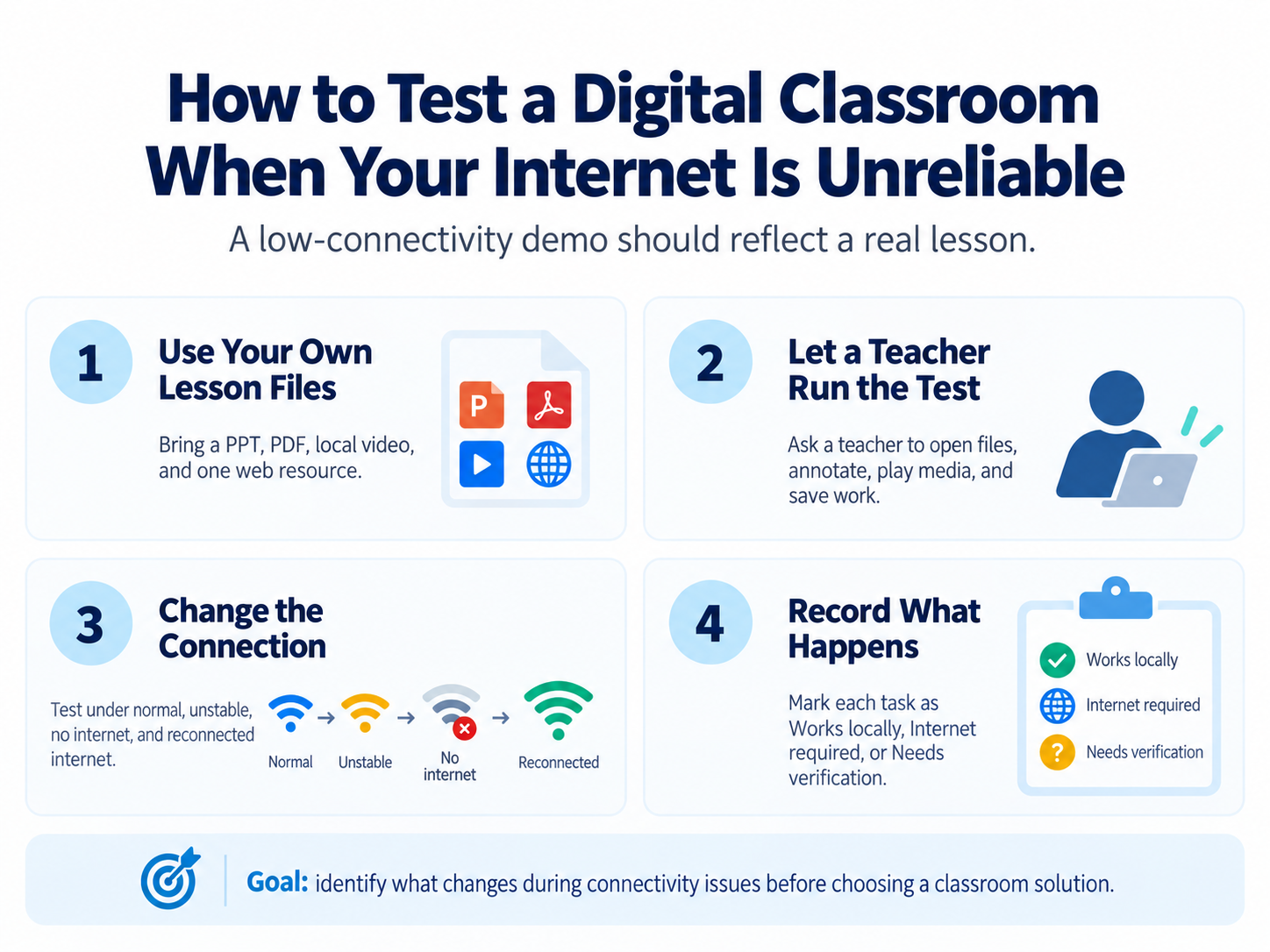
A meaningful low-connectivity demo should resemble an actual lesson.
1. Use Your Own Lesson Files
Bring a normal PPT, PDF, locally saved video, and one resource that requires web access.
This makes it easier to identify which parts of the lesson depend on the internet.
2. Let a Teacher Run the Test
A principal or IT administrator can assess infrastructure, but the teacher can identify workflow problems that may otherwise be missed.
Ask the teacher to start the lesson, change resources, write or annotate, play media, and save the work.
3. Change the Connection During the Lesson
Do not test only with perfect Wi-Fi.
Where practical, compare the workflow under:
normal connectivity → unstable connectivity → no internet → reconnected internet
The goal is not to deliberately make every feature work offline. It is to understand what changes and whether those limitations suit the institution's teaching requirements.
4. Record What Happens
Classify each important task as:
- Works locally
- Internet required
- Needs verification
This gives the buying team a clearer basis for comparing classroom solutions.
Where Roombr Fits in a Low-Connectivity Classroom
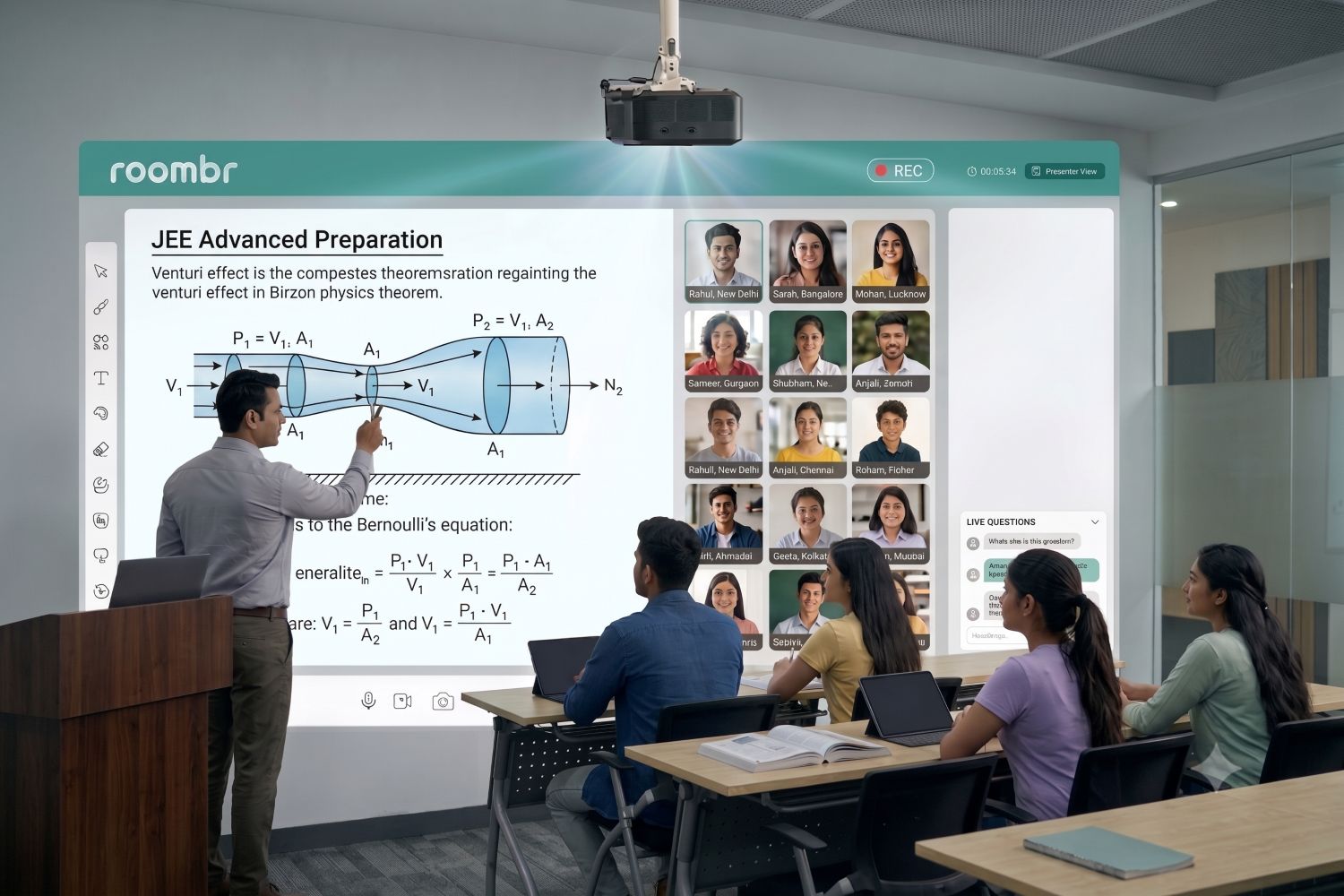
Roombr takes an integrated approach to classroom technology. Its digital classroom architecture combines computing and classroom teaching technology rather than requiring institutions to build the teaching workflow from several disconnected devices.
This makes Roombr relevant for schools, colleges, and training institutions evaluating a low-connectivity classroom solution, including institutions where reliable high-speed internet cannot always be assumed. Roombr devices can operate on internet connection speeds as low as 2 Mbps, which can be especially relevant for institutions working with limited bandwidth.
With Roombr, a classroom wall becomes a large interactive computing surface that supports digital teaching and classroom collaboration. The integrated approach also allows institutions to evaluate the complete teaching workflow rather than testing individual devices in isolation.
However, schools should still distinguish between locally available teaching functions and activities that require internet access. The actual experience can vary depending on the activity, network stability, and online resources being used.
During a Roombr demo, test the workflows that matter to your institution:
- Open your usual lesson files.
- Use the interactive teaching workflow.
- Play the media formats teachers commonly use.
- Test the online resources needed during normal lessons.
- Check what happens if connectivity drops.
- Restore the connection and verify what resumes or synchronizes.
- Ask the Roombr team to clarify which specific functions require active internet access.
This is particularly useful for rural, semi-urban, and other institutions where internet quality may vary during the school day.
Roombr should be evaluated as a digital classroom solution for the institution's actual connectivity environment, not only under ideal network conditions.
Frequently Asked Questions
1. Does a digital classroom need the internet all the time?
Not necessarily. Some classroom activities can use locally available files, computing, and teaching functions. Web resources, cloud services, streaming, live classes, and synchronization generally require connectivity. The exact division depends on the system and software being used.
2. Can a smart classroom work without the internet?
Some smart classroom functions may continue without the internet if the required content and applications are available locally. Schools should test their normal lesson workflow offline rather than assuming the complete system either works or stops.
3. What internet speed does a digital classroom need?
There is no universal internet speed for every digital classroom activity. Requirements differ for locally stored lessons, browsing, streaming, cloud applications, file uploads, and live or hybrid teaching.
4. What should schools test before buying a digital classroom for a low-connectivity area?
Test lesson startup, PPT and PDF access, annotation, stored media, saving work, web resources, live teaching if required, and what happens when the internet disconnects and reconnects.
Test Roombr Under Your Actual Classroom Conditions
If unreliable internet is a concern at your school, college, or training center, evaluate Roombr using the same conditions your teachers experience every day.
Bring sample lesson files and walk through your normal teaching workflow during the demo. Test locally available content, classroom interaction, multimedia, required online resources, and what happens when connectivity changes.
The Roombr team can also help you identify which parts of your required workflow depend on internet access and what should be considered during classroom planning.
Request a Roombr Digital Classroom demo and evaluate the system against your institution's teaching and connectivity requirements.

Foziya Abuwala
Share
Step Into the future of
Education with Roombr