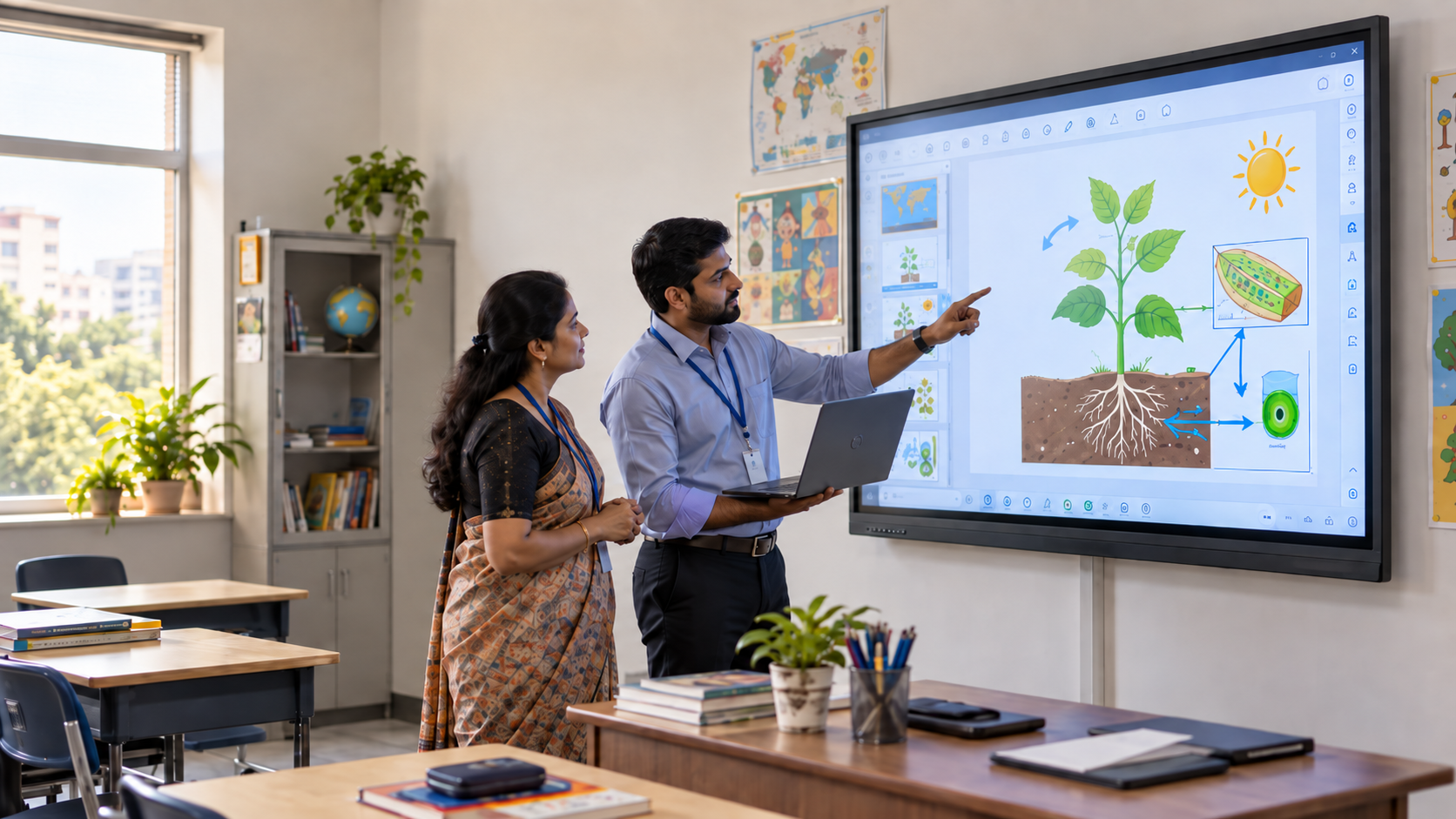


The digital board is installed. A teacher opens a lesson, reaches for the pen, and pauses. Where are the notes saved? What happens if the internet drops?
These questions rarely get enough time during a product demo. Yet they matter when students are waiting and lesson time is limited.
Good training closes that gap. This guide gives teachers and school leaders a practical way to move from first use to daily classroom routines.
Digital board training for teachers should cover basic controls, writing, lesson files, student activities, and simple fault checks. Start with one familiar lesson, then add new skills through guided practice. Give teachers time to test each task, ask questions, and apply it in class before moving on.
Why Teachers Need More Than an Equipment Demo
A digital board demonstration shows what a system can do. Training helps staff decide when and how to use it.
Four barriers deserve attention:
- Too Much At Once: A long feature tour leaves little time to practise.
- Fear of Interruptions: A teacher may avoid unfamiliar tools during a busy lesson.
- Few Relevant Examples: A maths demonstration may not help someone teaching Kannada or English.
- No Follow-Up: Questions arise after teachers begin using the system, not only during installation.
These concerns call for support, not pressure to use every feature. EEF's 2025 review of educational technology stresses that technology's value depends on the tools selected and how they support teaching.
What Should Digital Board Training Cover?
Build training around a familiar lesson, from opening the material to saving class notes. Include student participation and a simple backup for technical problems.
Before training, check the installed model and software. Interactive flat panels and projection-based systems can have different controls, pens, and connection needs.
Schools choosing equipment can compare digital board features and pricing separately. This training plan focuses on using the available system well.
A 30-Day Digital Board Training Plan
Treat this as a suggested practice schedule, not a promise of mastery. Advance when teachers can complete the task comfortably.
Days 1–3: Get Comfortable With the Controls
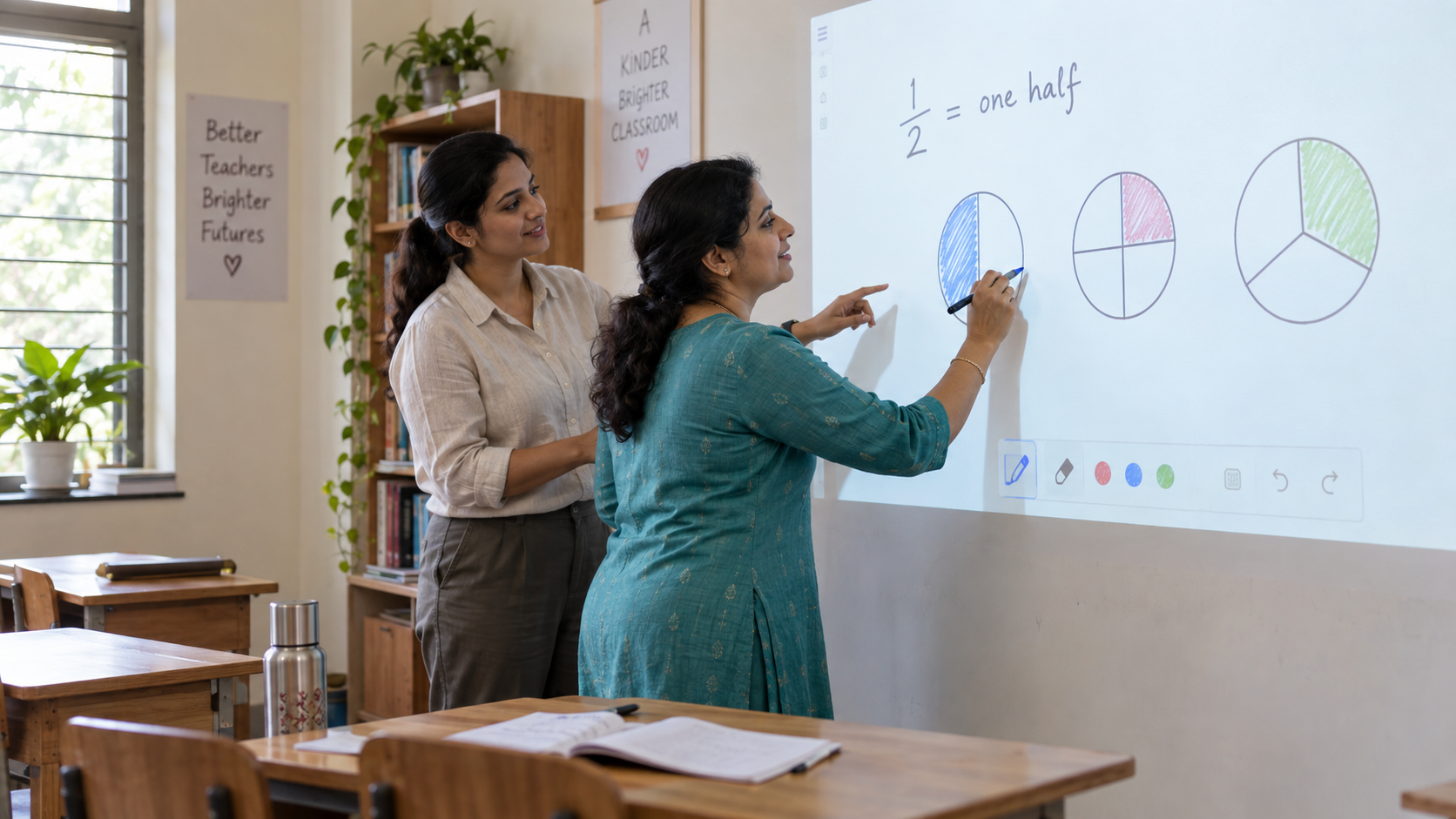
Practice on the digital board teachers will use in class, with their usual lesson files and accounts. Let each person operate it, rather than only watch.
Practise these actions:
- Turn the system on and open the teaching workspace.
- Test the pen, eraser, volume, and page controls.
- Open a saved presentation or PDF.
- Return to the main screen without losing work.
Finish by asking each teacher to open a file and switch back to the writing screen without prompting.
Days 4–7: Teach One Familiar Lesson
Use the digital board for teaching something already prepared. There is no need to design a new lesson and learn new controls together.
For example, explain a fraction problem using two colours. Switch between the prepared question and your working without losing your place.
Keep a short practice slot before class. Ten minutes across five working days gives a teacher 50 minutes of practice. Schools should protect that time within working hours.
Week 2: Bring Existing Materials Into Lessons
Next, practise using slides, PDFs, diagrams and permitted textbook extracts. Check file support before relying on a resource.
A teacher should be able to:
- Open the material without searching through personal folders.
- Highlight a key point and add an explanation.
- Keep the original file and save your changes in a separate version.
- Find that copy for the next class.
Build a small set of digital classroom resources by class, subject, and topic. Clear names such as “Class 6 Fractions Practice” are easier to find than “Final Lesson 3.”
Where offline access is supported, download essential files in advance. Test them with the internet disconnected.
Week 3: Add Purposeful Student Interaction
Using a smart board for teaching should give students something to think about or do.
Choose one of these practice activities:
- Mathematics: Ask students to locate and correct an error in a worked solution.
- Science: Hide diagram labels, then invite students to name each part.
- Languages: Highlight clues in a passage, then discuss an answer.
- Social science: Mark a route on a map and explain why it matters.
- Primary classes: Sort pictures into groups and ask children to explain their choices.
These suggested activities should fit the syllabus, grade, and language of instruction.
Use interactive classroom tools only when they serve the lesson. A single well-chosen question can be more useful than several unrelated animations.
Week 4: Build a Reliable Teaching Routine
Now use the digital board across a complete lesson. Include a brief recap, explanation, student task, and closing check.
Ask a colleague to observe one part. Was the text readable from the last row? Did switching files break the flow? Could students explain their answers?
Where recording is available, teachers can review a short explanation. Follow school rules for consent, access and storage before recording or sharing identifiable students.
How School Leaders Can Support Teacher Training
Effective smart classroom teaching needs time, relevant practice and someone to contact when problems arise.
Group staff by confidence or subject. Adapt digital board practice to their skills and lesson needs.
Assign a peer mentor and a named technical contact. Hold short refresher sessions around actual questions from class.
For Indian schools, include examples in the languages teachers use. Check that text in those languages displays correctly in the installed software.
UNESCO's teacher digital competency framework guides training in the educational use of technology. Apply that principle by checking classroom practice, not attendance alone.
Before Class: A Short Digital Board Checklist
- Open the correct file and test writing input.
- Check text size from the last row.
- Test audio if the lesson needs sound.
- Close personal messages and unrelated browser tabs.
- Keep a printed prompt or other simple backup ready.
- Confirm how to contact support.
If something fails, check the input, connection, and volume first. Follow the device manual for calibration or restarts. Leave repairs and system changes to authorised staff.
For broader guidance, review these common classroom board mistakes.
Is the Teacher Ready for Daily Use?
Arrange a short practice lesson on the digital board with a colleague. Use the teacher's own material and make clear that this is not a graded assessment.
Can they start, explain, involve students, save work, and recover from a wrong input? Record each skill as “independent,” “with help,” or “needs practice.”
Use the result to plan support, not rank teachers. Confidence and skill may grow at different speeds.
Conclusion
A digital board becomes useful when teachers can fit it into familiar lessons. Begin with core controls, practise with real materials, and add interaction gradually.
Keep peer support and follow-up in place after the first month. Success is measured by purposeful classroom use, not the number of features demonstrated.
Frequently Asked Questions
1. How long does digital board training take?
There is no fixed duration. A first session can introduce basic controls, while several weeks of practice help teachers build routines. Adjust the plan to what teachers can do independently.
2. Can teachers use the board without the internet?
Basic writing and locally saved files may work offline, depending on the system. Cloud resources, online quizzes, and video calls need connectivity. Test required functions before class.
3. Do teachers need advanced technical skills?
No advanced coding or repair skills are needed for routine teaching. Staff need guided practice, clear instructions, and access to support for technical faults.
4. Should every teacher follow the same training plan?
Use shared core skills, then adapt the pace and examples. Subject needs, language, prior experience, and classroom routines should shape the sessions.
Bring Your Next Lesson to a Roombr Demo
Your teachers should see how classroom technology fits a real lesson before your school commits to a rollout.
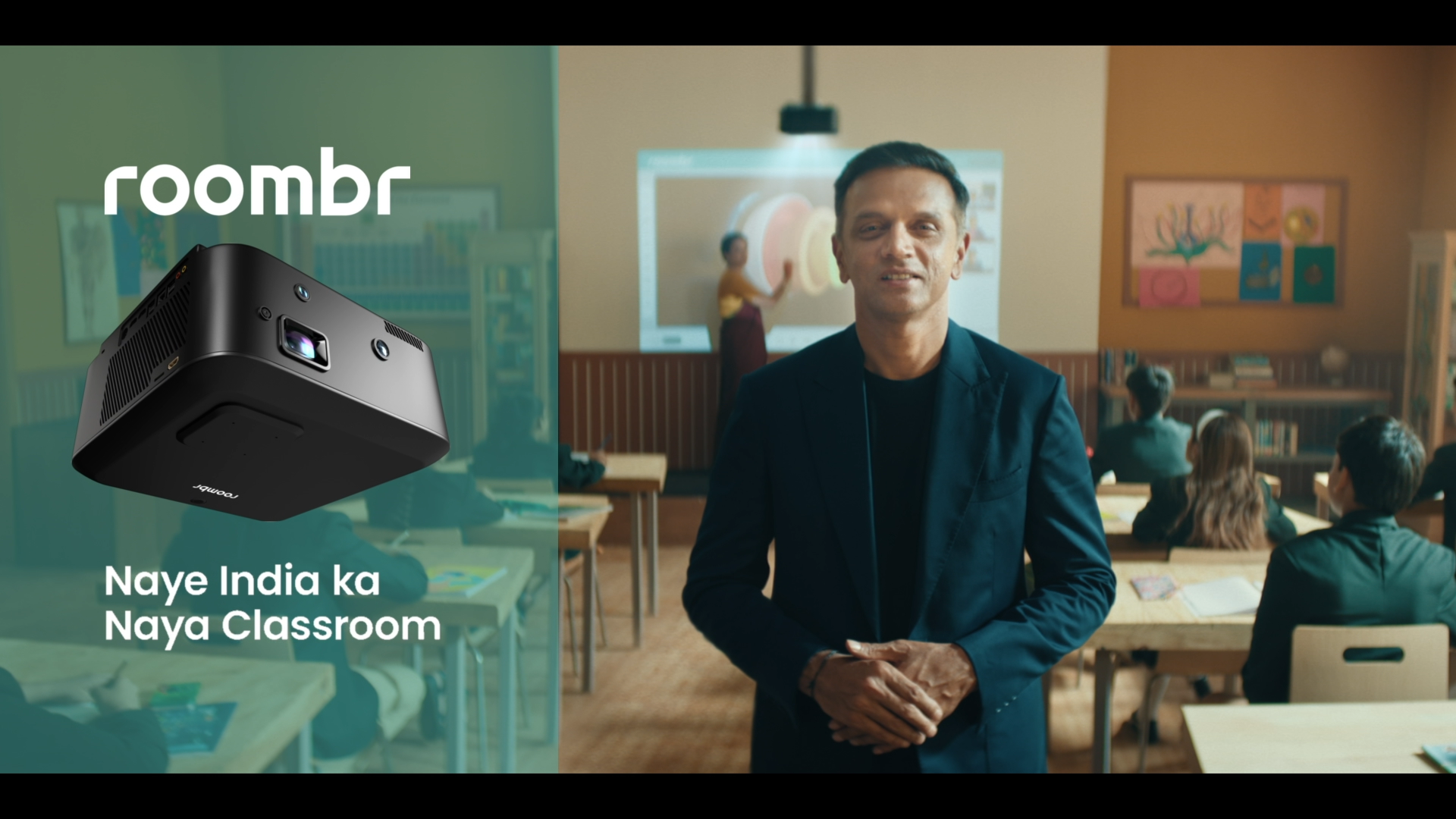
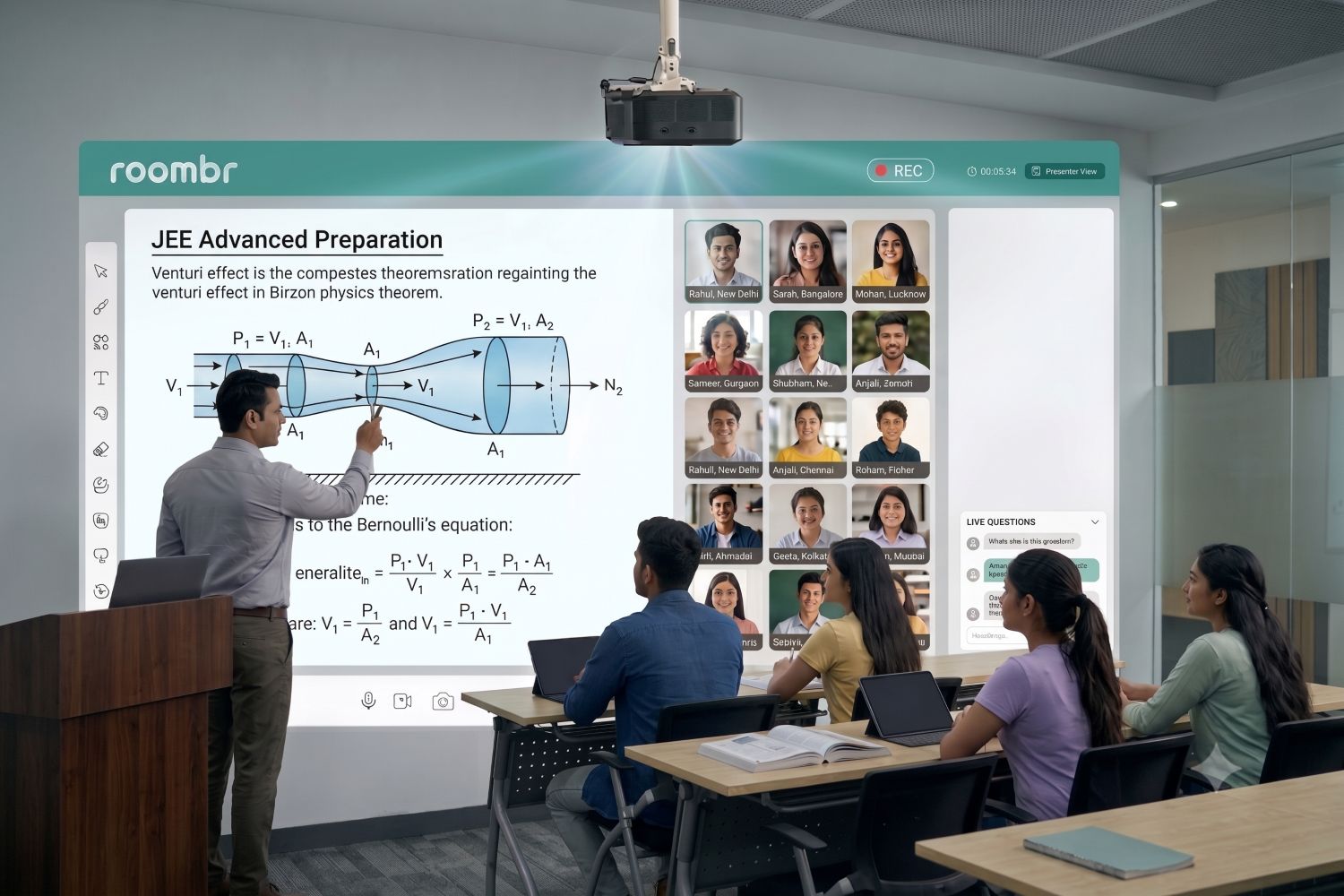
Roombr Digital Classroom brings interactive projection, computing, cameras, speakers and microphones together in one integrated unit. Its wall-based teaching space lets educators present content and write on a shared interactive surface.
Teachers can record live lessons and share recordings for revision. Roombr also supports tests and assignments, helping connect lesson delivery with follow-up work. Introduce these functions in stages, once staff feel comfortable with everyday teaching.
Bring a familiar presentation, diagram, or lesson plan to your demo. Ask the team to show writing, file access, recording, and student follow-up using your classroom needs. Discuss onboarding, practice sessions, and available support before planning deployment.
Start with one teaching task, then build an adoption plan your staff can use with confidence all year. Explore Roombr's integrated digital classroom solution or book a school demo now.

Foziya Abuwala
Share
Step Into the future of
Education with Roombr