
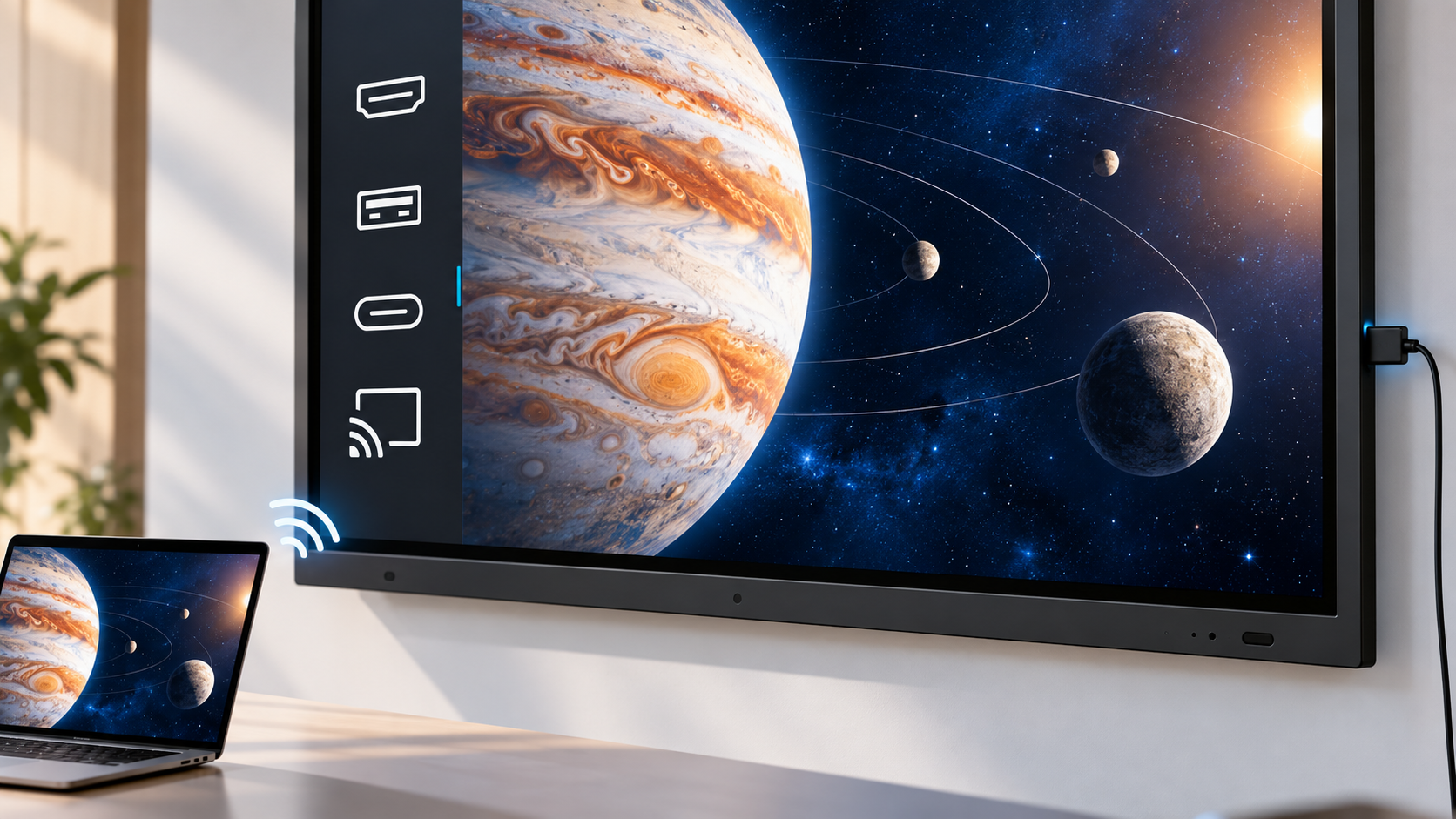
An interactive panel may offer HDMI, USB-C, USB, and wireless connection options, but the port list alone does not show whether a school’s devices will work as expected.
A laptop may display correctly while touch control fails, and similar-looking ports may support different functions. For IT heads, faculty, and procurement teams, the more useful question is: What does each connection carry, and will it support the way teachers work?
Interactive Panel Connection Types at a Glance
When evaluating connectivity, schools should separate video, audio, touch control, charging, and network requirements rather than checking only whether a particular port appears in the specifications.
The best connection therefore depends on the teaching task and the devices the institution already uses.
HDMI on an Interactive Panel: What Does It Connect?
HDMI is commonly used to send digital video and audio from a laptop or computer to an interactive display. It can be useful when teachers need a stable wired connection without depending on classroom Wi-Fi.
However, displaying the laptop screen does not automatically mean teachers can control that laptop by touching the interactive panel.
If touch control is required, the display connection alone may not be enough. Depending on the panel and computer, a separate USB connection may be needed to send touch input back to the laptop.
What Is a Touch Cable for an Interactive Panel?
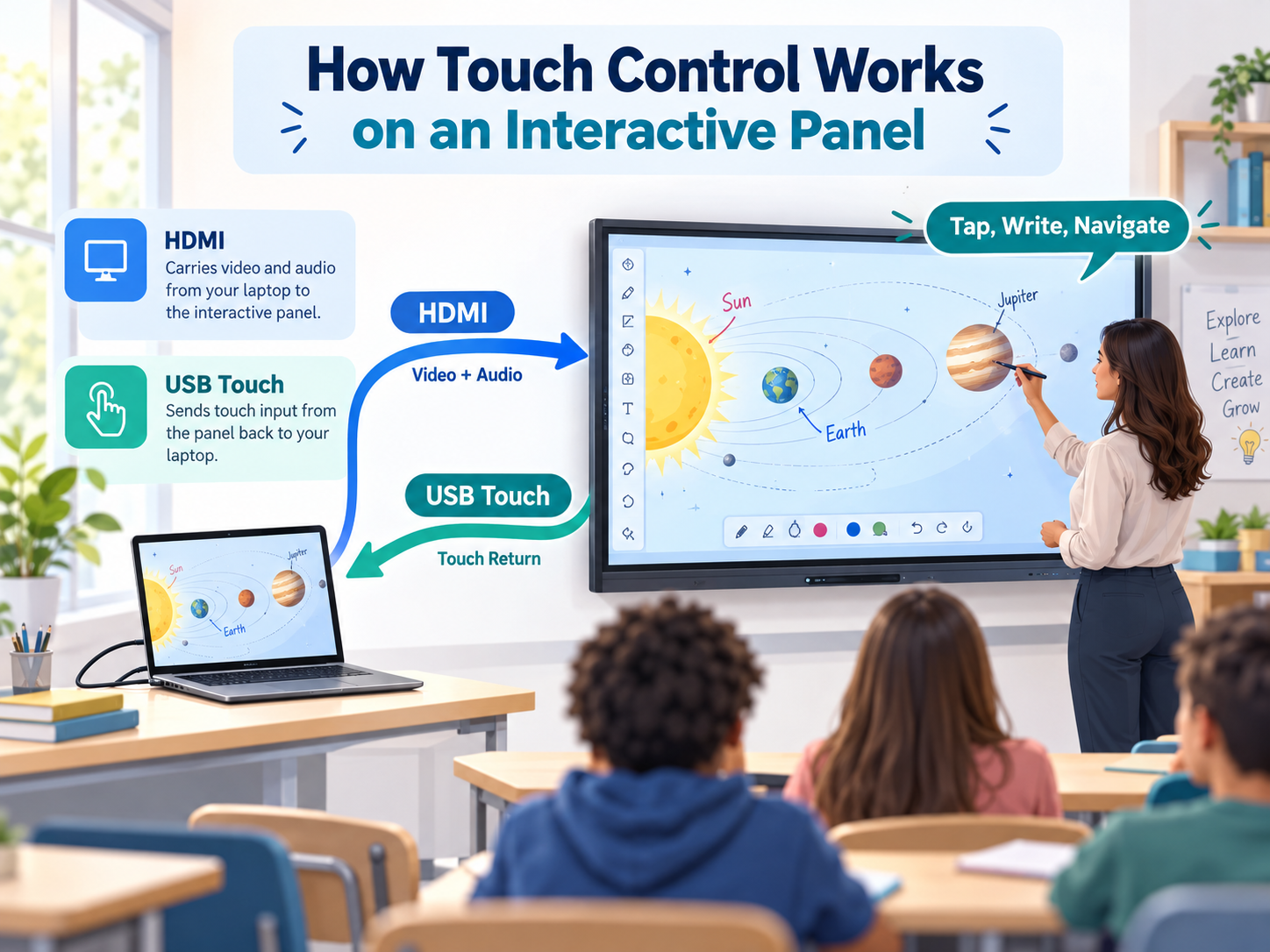
A touch cable for an interactive panel is typically a USB connection that sends touch input from the interactive surface back to an external computer.
A common setup works in two directions:
Laptop → HDMI → Interactive panel: video and audio
Interactive panel → USB touch → Laptop: touch input and control
This allows a teacher to tap, write, select items, or navigate compatible applications from the interactive surface rather than returning to the laptop.
The exact connector and setup can vary by product. Some configurations may use a separate USB touch connection, while others can support touch through a compatible USB-C workflow.
During a demo, do more than check whether the laptop screen appears. Open a normal lesson file and confirm that actions performed on the interactive panel actually control the connected computer.
USB-C on an Interactive Panel: Can One Cable Do Everything?
USB-C can simplify an interactive panel connection, but a USB-C connector does not guarantee identical functionality across laptops, panels, and cables.
A compatible USB-C setup may support:
- Video and audio
- USB data or touch functions
- Power delivery or laptop charging
For video, both devices must support the required display capability. VESA explains that compatible DisplayPort over USB-C connections can carry DisplayPort audio/video alongside USB data and power through the USB-C connector.
This means two laptops with similar-looking USB-C ports may not support the same classroom workflow.
Before a school standardises on a one-cable setup, test the laptop models teachers actually use. Confirm the specific functions required rather than assuming that every USB-C connection will provide video, touch, and charging.
Wireless Screen Sharing and Casting: What Should Schools Check?
Wireless sharing can reduce cable handling and make it easier to switch between devices, but the workflow depends on the interactive panel, operating system, sharing method, and network setup.
During evaluation, check:
- Which laptops, tablets and operating systems are supported
- Whether additional software or an app is required
- Whether devices need to use the same network
- Whether audio is shared along with the screen
- Whether touch-back or remote control is available
- How quickly the connection starts
- Whether sharing remains stable under normal classroom conditions
The terms screen sharing and casting are also not used identically across every platform. Screen sharing commonly mirrors the device screen, while casting may send selected content or media.
The safest approach is to test the exact wireless workflow teachers are expected to use.
If the institution is already dealing with connection failures rather than evaluating compatibility, see the guide to troubleshoot interactive panel problems.
Test Your Laptop Before Buying an Interactive Panel
A compatibility test should use the institution’s real equipment, not only the laptop or presentation prepared for a vendor demonstration.
Try these five checks:
1. Connect the laptop: Use the wired connection teachers are expected to use most often. Confirm that the correct screen appears without unnecessary setup steps.
2. Test picture and audio: Open a presentation and play a short video. Check that both image and sound work through the expected classroom setup.
3. Open normal teaching resources: Try a PowerPoint file, PDF, browser page, or another resource teachers regularly use. The goal is to test a real lesson workflow rather than demonstration content.
4. Test touch control: If teachers should be able to control the laptop from the interactive surface, test tapping, writing, scrolling, and navigation. A successful video connection does not confirm that touch return is working.
5. Test wireless sharing: Disconnect the wired setup and repeat a normal sharing task wirelessly. Check connection time, stability, audio, and any software or network requirements.
For a broader evaluation beyond connectivity, use Roombr’s smart classroom demo checklist to test the complete teaching workflow.
What About OPS in an Interactive Panel?
An OPS module is a computer designed to fit into a compatible interactive display. It allows supported applications and files to run without connecting an external laptop for every lesson.
External-device connectivity still matters when teachers or faculty need to use their own computers.
Institutions comparing internal and external computing approaches can read the dedicated guide to OPS and built-in computing.
Key Takeaway
Good interactive panel connectivity is not about choosing the product with the longest port list.
Schools should identify what teachers need to send between their devices and the interactive surface: video, audio, touch control, power, or wireless content. They should then test those functions using the laptops, lesson files, and classroom network already in use.
A short compatibility test can uncover workflow limitations that may not be obvious from a specification sheet alone.
Interactive Panel Connectivity FAQs
1. Does HDMI carry touch from an interactive panel to a laptop?
HDMI normally carries audio and video. If touch input must travel from the interactive panel back to the computer, a separate supported USB touch connection may be required.
2. Why can I see my laptop screen but touch does not work?
The display connection may be working while the touch-return connection is missing or incorrectly connected. Check the panel’s required touch connection and the port associated with the active display input.
3. Does every USB-C port support video on an interactive panel?
No. USB-C describes the connector, but the port must also support the required video capability. The laptop, panel, and cable all need to support the intended connection.
4. Is wireless screen sharing the same as casting?
Not always. Screen sharing often mirrors a device screen, while casting may send selected content. The exact behaviour depends on the platform and sharing solution.
Test Your Existing Classroom Devices During a Roombr Demo
If your institution is evaluating a digital classroom setup, use the Roombr demo to test the laptops, devices, lesson files, and classroom workflows your teachers already rely on.
Check display output, audio, touch interaction, wireless sharing, and the connection process faculty are expected to use every day. This helps your team assess whether the proposed setup fits existing teaching resources and device requirements before implementation.
Roombr takes an integrated approach to digital classroom technology by combining computing and interactive teaching capabilities within a user-friendly and compact classroom setup.
Explore Roombr Digital Classroom and request a demo at your institution to evaluate the system in your actual teaching environment.

Foziya Abuwala
Share
Step Into the future of
Education with Roombr