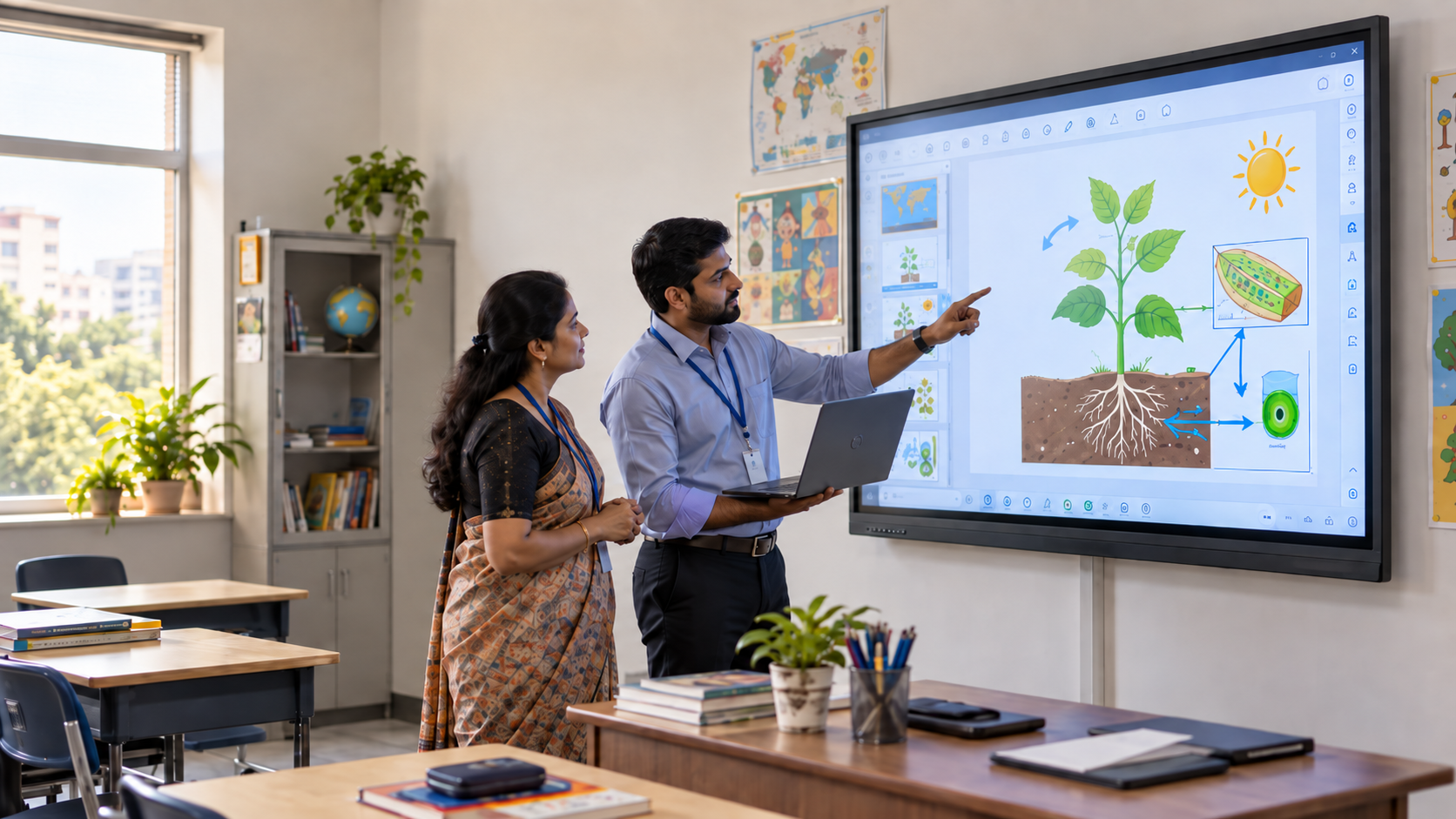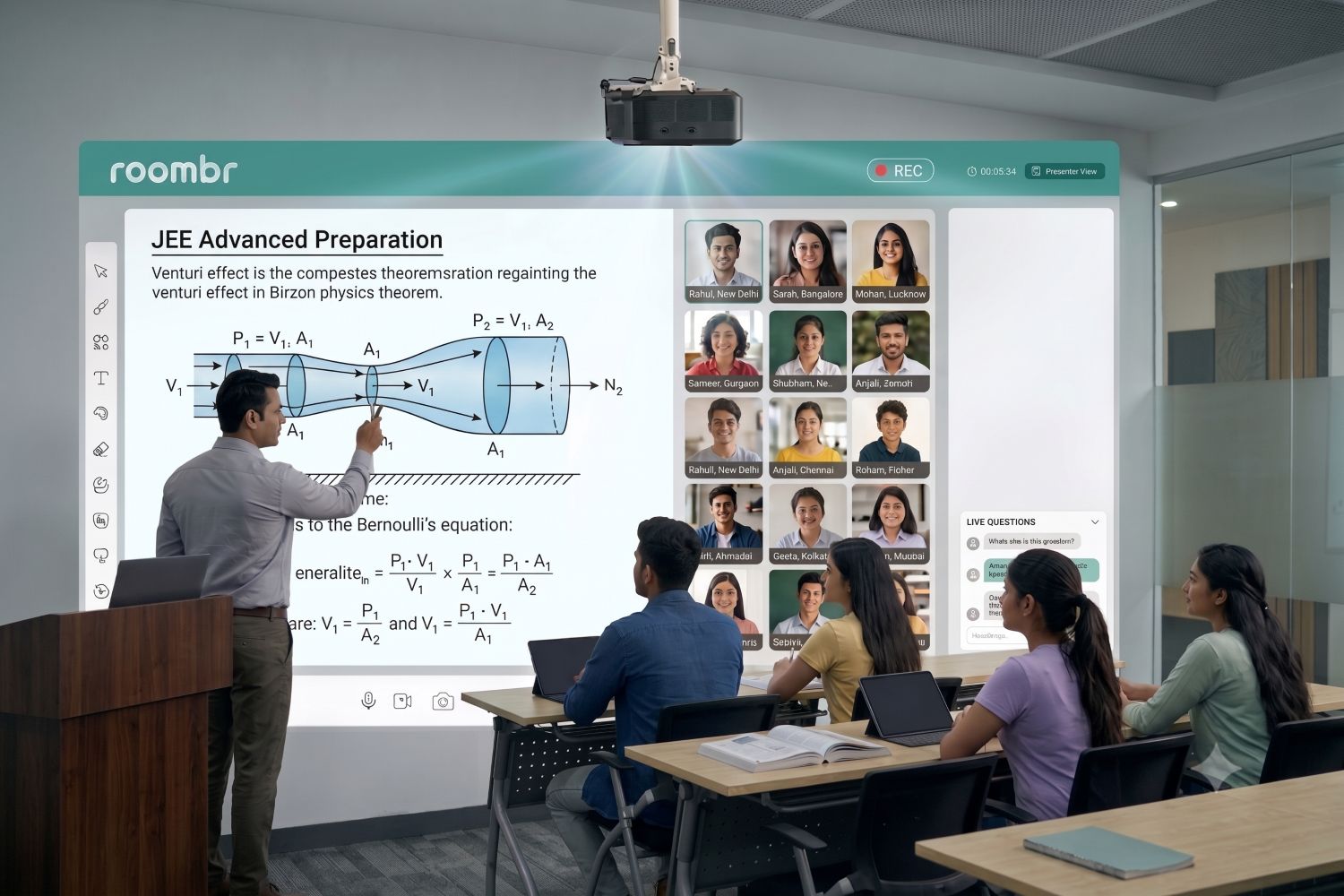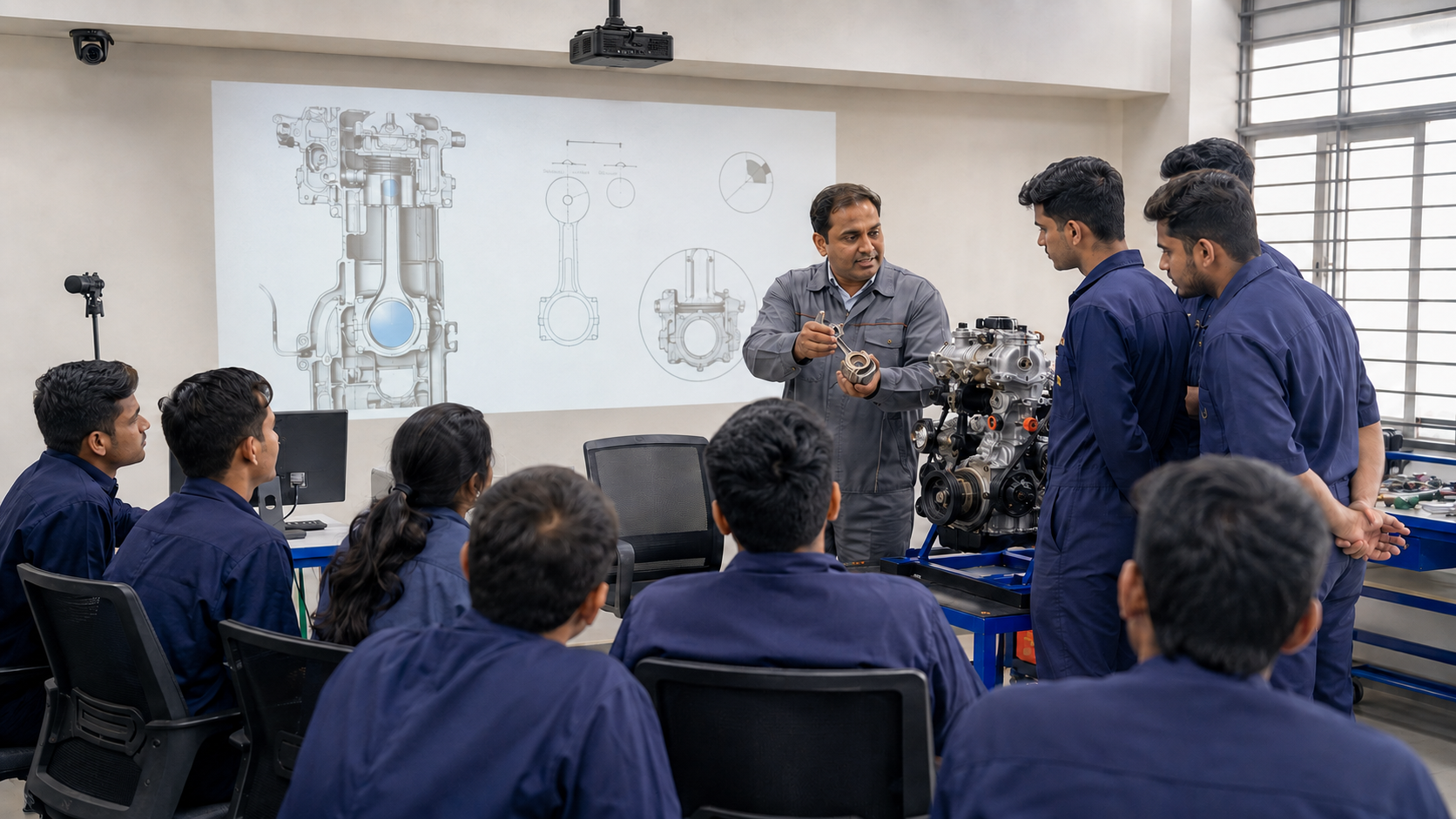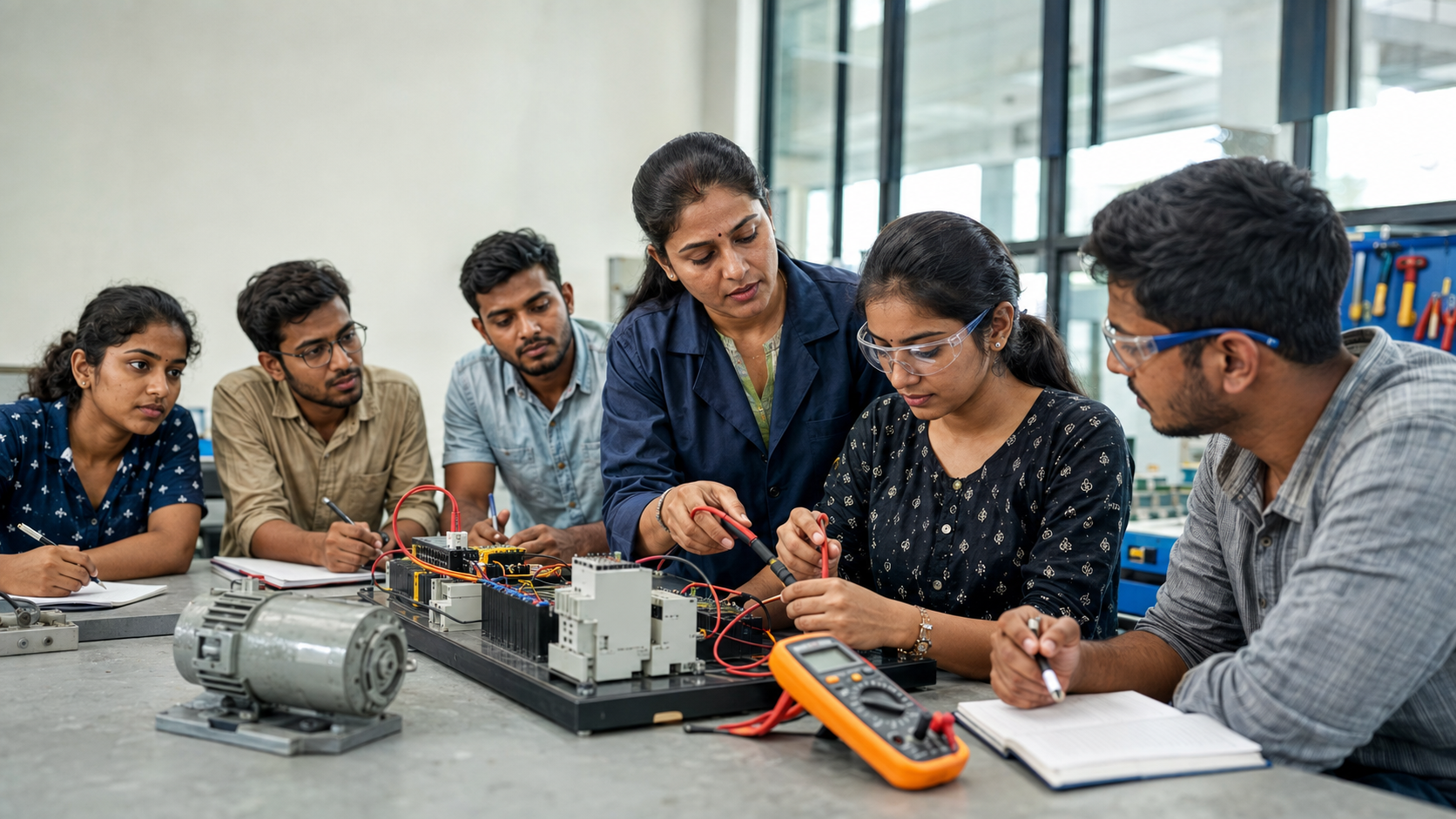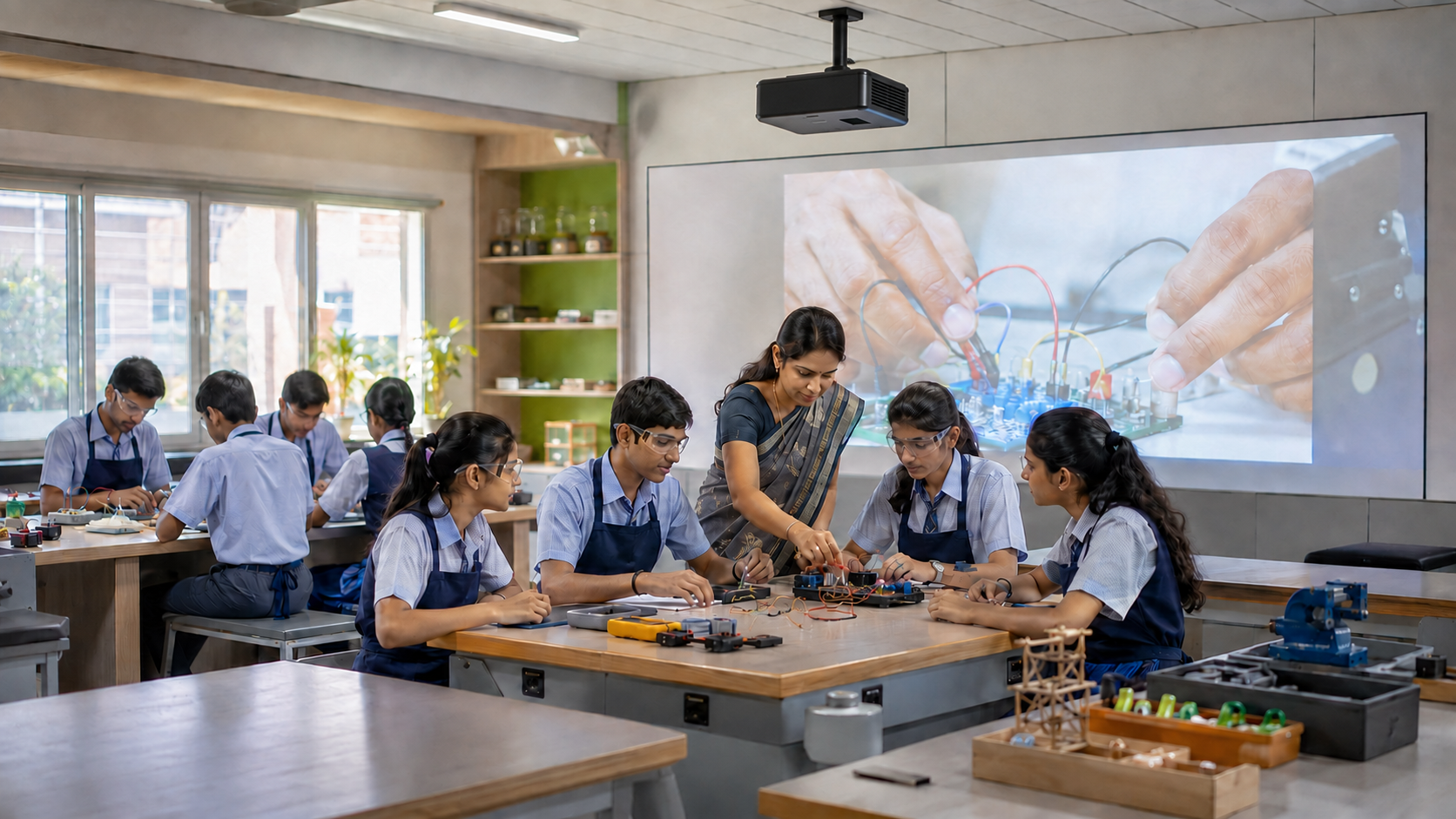

A digital board can look good during a sales demo. The real test begins after it enters a classroom. Can every student see the lesson? Can a teacher start a class without calling the IT team? Can the school save, record, and reuse what is taught?
These questions matter as Indian schools add more classroom tools. The Ministry of Education released its UDISE+ 2025–26 data in July 2026. It found that 69.9% of schools had computer access. Internet access was in place at 67.4% of schools. Buying hardware, however, does not ensure better teaching.
This guide explains how to compare a digital board for teaching based on classroom needs, not sales claims. It covers the main features, price factors and checks to complete before signing off a purchase.
What Is a Digital Board for Teaching?
A digital board for teaching is an interactive classroom system. It lets teachers present, write, and add notes to digital content. It may also support videos, quizzes, screen sharing, lesson recording, and online lessons.
The term does not refer to one fixed type of device. Schools may encounter three main setups:
This distinction matters. A large screen may display a lesson well. Yet it may need added equipment to record classes or support remote students.
10 Essential Features of a Digital Board for Teaching
The following features affect daily teaching more than a long list of specs. Use them as a clear way to compare each option.
1. A Display Sized for the Actual Classroom
Do not select a digital board for teaching only by its diagonal screen size. Start with the room, the seating plan, and the smallest content students must read.
A 65-inch display may suit one room but feel too small in a deeper space. A scalable display may work better in a large room. AVIXA’s display-size guide uses image height, content detail, and the farthest viewer.
During the demo, place a student at the last desk. Show a normal worksheet, not a promotional video. Check whether labels, numbers, and menu controls remain readable.
2. Accurate Writing and Simple Annotation
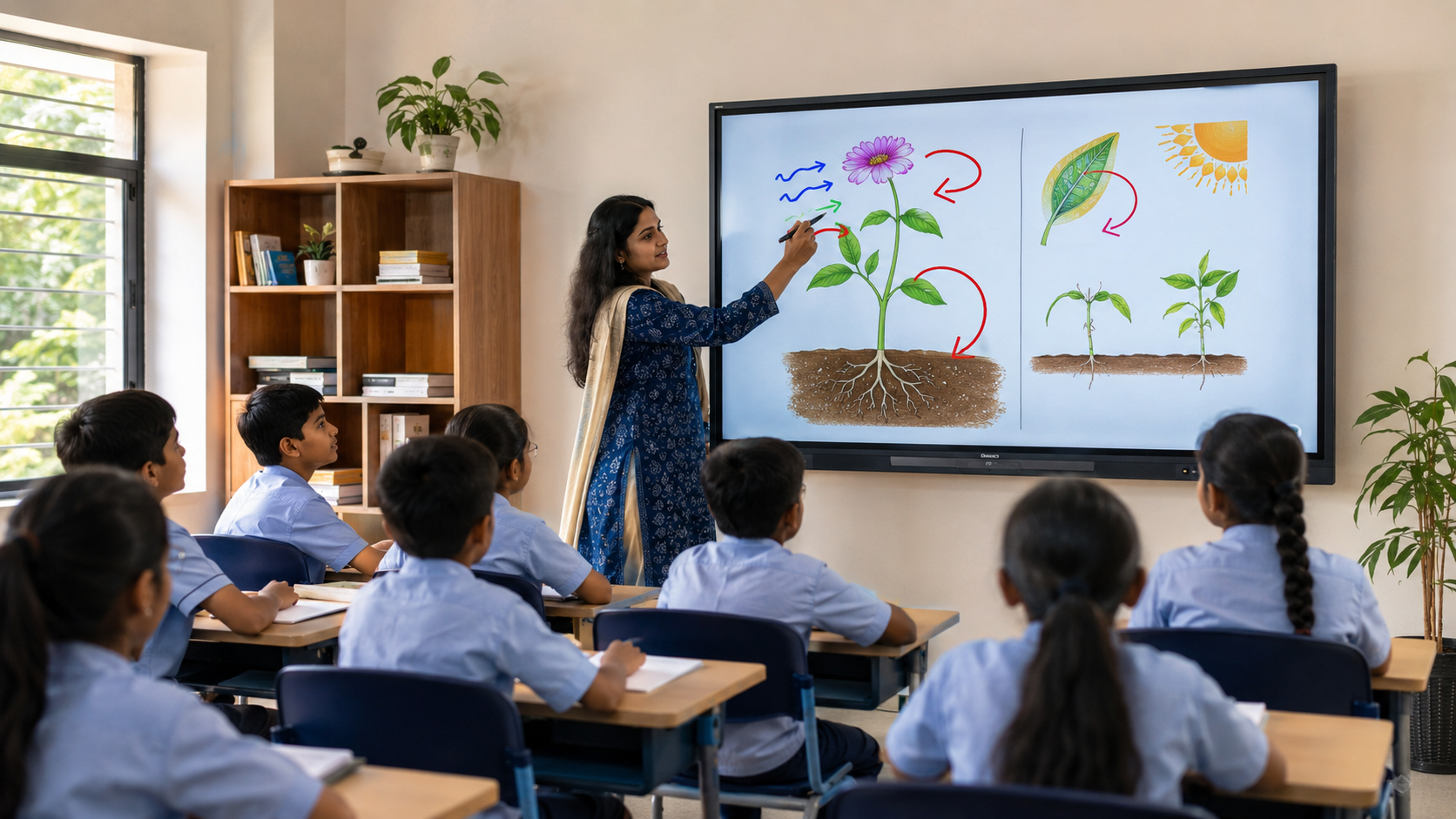
Writing on a digital board for teaching should feel natural. Test it with an equation, a labelled diagram and a short paragraph. Watch for lag, broken lines and poor pen placement.
The teacher should be able to:
- Write over slides, websites and PDFs
- Change colours and pen thickness quickly
- Erase without opening several menus
- Add a fresh page without losing earlier work
- Save and share the annotated lesson
Many touch points may sound good. In practice, fast and stable control matters more. The most useful smart board features are the ones that keep the lesson moving.
3. Computing That Matches the Teaching Workload
A digital board for teaching needs enough power for the planned work. Basic board use needs less power than 3D models, live video, or several open apps.
Ask for the processor, RAM, storage, graphics, and operating system. Then test the files teachers use. Open a slide deck, browser, and subject app at the same time. Switching should stay smooth.
Also ask whether computing is built in, optional, or supplied through another unit. A low board price may exclude the computer needed to run it well.
4. A Complete Lesson-Content Workflow
A digital board for teaching should support the whole lesson. Teachers need to open files, add notes, save the session, and share it. They should not have to rebuild the work elsewhere.
Check compatibility with:
- PowerPoint, PDF, image and video formats
- Cloud and local storage
- The school’s LMS or content platform
- Web sources and approved teaching apps
- Existing laptops and teacher accounts
India’s DIKSHA platform offers learning material, revision tools and quiz tasks. The selected system should allow teachers to present this content with ease.
5. Audio and Video Designed for the Room
Weak audio can make a sharp display useless. Students must hear speech, videos, and remote participants from every row.
Check whether a digital screen for teaching provides clear sound in both the first and last rows. For hybrid or recorded lessons, also test the mics and cameras.
A single webcam may show the teacher but miss the class. A dual-camera setup can cover both views. Test it with normal classroom noise.
6. Lesson Recording and Hybrid Teaching
Lesson recording is not the same as screen capture. A useful recording combines lesson content with clear teacher sound. It may also need a classroom view.
Schools should ask:
- What exactly appears in the recording?
- Where is the file stored?
- Can teachers pause or stop recording?
- Who can access the recording?
- Can the file be shared with absent students?
- Do video calls require extra hardware or paid plans?
Test the full workflow before purchase. A camera icon does not prove that the system is ready for hybrid teaching.
7. Reliable Connectivity With an Offline Option
Wireless casting is useful when teachers or students need to share a device. HDMI and USB connections remain important when Wi-Fi is unstable or a guest teacher brings an unfamiliar laptop.
A stable digital smart board for teaching should support the school’s current connections. Check Wi-Fi, Bluetooth, HDMI, USB, Ethernet and mobile data where needed.
Offline use also matters. Teachers should still be able to add notes, open saved lessons and present local content during an outage.
8. Teaching Software and Assessment Tools
Software on a digital board for teaching should reduce work. Look for board tools, on-screen notes, organised files and simple sharing.
Quiz tools can add value. A short test can show which idea needs more work. The result should help the teacher plan the next step.
Confirm renewal fees, user limits, storage and update rules. “Free software” may only be free for a limited period.
9. Privacy, Security and User Control
A connected digital board for teaching may handle names, class files, results and teacher accounts. Security is therefore a key buying need.
Schools should verify:
- User roles and account permissions
- Password and sign-in controls
- Storage location and data ownership
- Software and security updates
- Remote support access
- The process for deleting old recordings and accounts
One teacher’s files should not remain open for the next class. Ask the vendor to show account switching, sign-out, and content deletion.
10. Teacher Training, Warranty and Local Support
Even the best digital board features add little value if teachers avoid them. UNESCO’s Global Education Monitoring Report says teacher training is key to the effective use of classroom tools.
Training should use the school’s real lessons. It should cover setup, on-screen notes, file access, quizzes, lesson recording, and basic fixes.
Ask what the warranty includes, who visits the school, and how long support takes. Local service often matters more than one extra spec.
Match Digital Board Features to the Teaching Need
Not every classroom needs the same setup. Use the teaching task to decide which features matter most.
This approach prevents overbuying. It also stops a key feature from being missed when a vendor focuses only on display size.
How Do Features Affect Digital Board Price?
A digital board’s total cost includes much more than the display alone. The final quote may also cover a computer, cameras, mics, software, setup, training, and support.
Compare the full cost over a fixed period. Use this simple five-year sum:
Total cost = purchase price + installation + accessories + five years of software and maintenance
For example, suppose a board is quoted at ₹1.20 lakh. Now add ₹25,000 for computing and ₹20,000 for sound and video. Setup costs ₹10,000. Software costs ₹12,000 a year. The five-year total becomes ₹2.35 lakh. These figures are for illustration only and do not reflect current market pricing.
Use Roombr’s smart board cost breakdown for current price tiers. The digital board budgeting guide explains the additional costs schools should include.
How to Choose a Digital Board for Teaching: Buyer Checklist
Use this checklist before approving a quote:
- Define three teaching jobs. List what teachers must do each day.
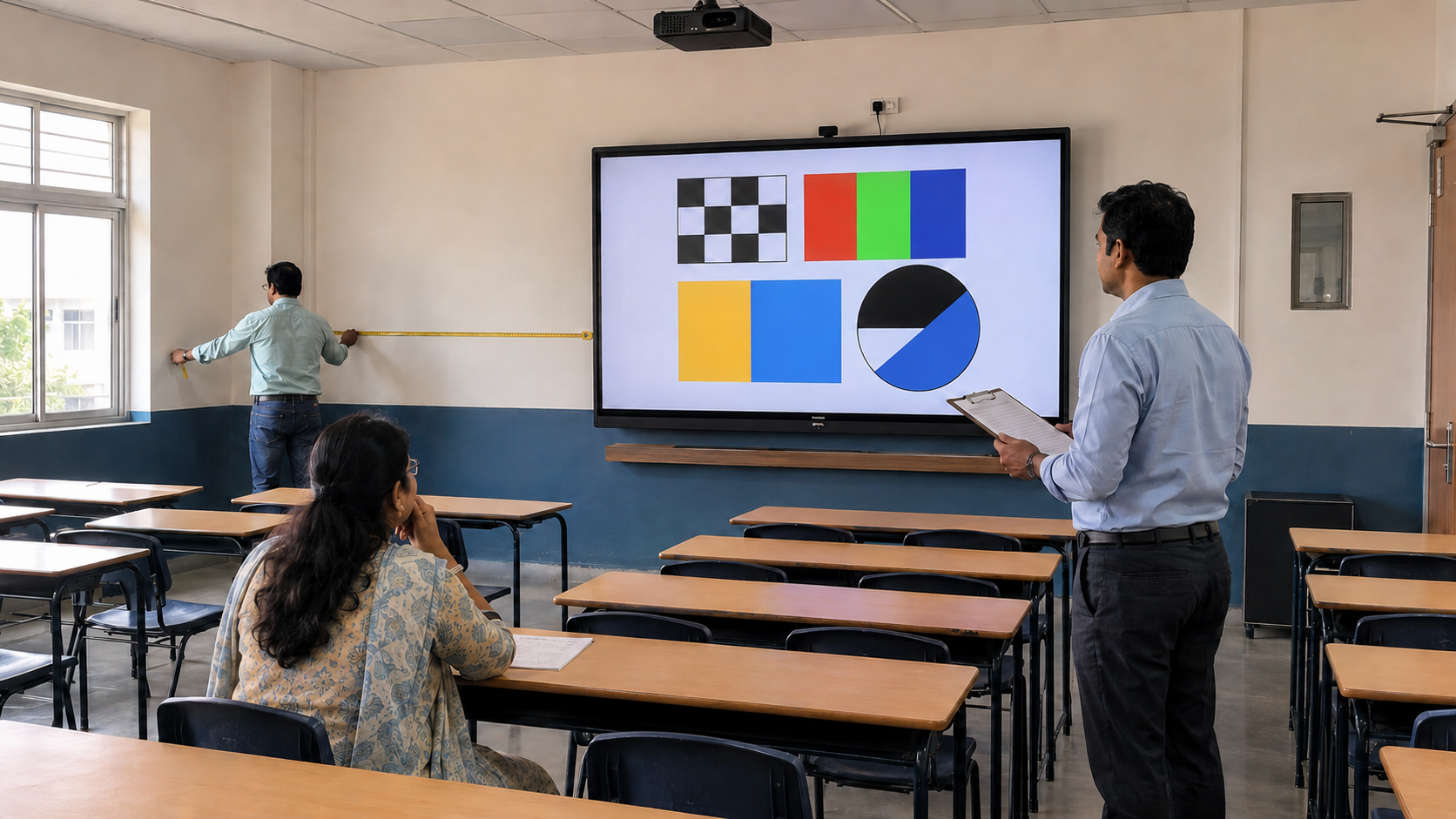
- Measure the room. Record the farthest seat, room width, available wall area, and light conditions.
- Use real lesson files. Test a PDF, slide deck, video, and subject app.
- Run a teacher demo. Let a teacher start, write, and save work without vendor help.
- Test the last row. Check text visibility and audio from the farthest seat.
- Interrupt the internet. Confirm what still works offline.
- Record a short lesson. Review the picture, sound, file size, and sharing process.
- Request a detailed quote. Separate hardware, setup, paid plans, training, and support.
- Speak with current customers. Ask about uptime, service, and teacher use.
- Plan ownership. Assign responsibility for accounts, updates, content and basic support.
This test reveals more than a spec sheet. It shows whether the system fits the people who will use it.
Standalone Digital Board vs Integrated Digital Classroom
A standalone interactive flat panel may be enough for basic writing and display. Schools with wider needs may choose a digital board for teaching with computing, cameras, mics, lesson recording, and software.
Neither format is right for every school. The best digital board for teaching is the one that completes each key task with the least daily friction.
Where Roombr Fits
Roombr is not a standard interactive flat panel. It is an all-in-one integrated classroom system that turns a wall into an interactive display of up to 200 inches.
The current Roombr Pro specifications include:
- 1080p DLP LED projection
- Windows 11
- 16GB RAM
- 1TB SSD storage
- Dual 8MP cameras
- Integrated audio
- IR pen support
- Wired connectivity
- Wireless connectivity
- 4G connectivity
This all-in-one setup can suit schools that need more than a display. It brings teaching, lesson recording, sound, video, and computing together.
Frequently Asked Questions
1. What is a digital board for classroom teaching?
A digital board for teaching is an interactive classroom system. Teachers can use it to present, write, add notes, save and share lessons. The hardware may be a flat panel, an interactive projector setup, or an integrated classroom device.
2. Which digital board features are most important?
Start with a clear display, accurate writing, stable computing, and easy file access. Then check sound, cameras, recording, connections, software, security, training, warranty, and support.
3. How do schools choose the best digital board for classroom use?
Measure the classroom, define daily teaching tasks, and test real lesson files. Let teachers use the system without vendor help. Compare the five-year cost instead of relying only on the purchase price.
4. Can a digital board work without the internet?
Yes, if it supports local storage and offline tools. Schools should test whether teachers can open lessons, write, add notes, and save work when the network is down.
5. Is a digital board the same as an interactive flat panel?
Not always. An interactive flat panel is one type of digital board. The term also covers interactive projector setups and integrated classroom systems with display, computing, sound and video.
6. Does every digital board include cameras and microphones?
No. Some models include them, while others need added devices. Check whether the quote covers cameras, mics, speakers, cables and software for recording or hybrid teaching.
Choose the Teaching Workflow Before the Hardware
A digital board for teaching should make a lesson easier to deliver, revisit and share. Start with the room, the teachers and the learning tasks. Then compare the display, writing, computing, software, recording and support needed for that workflow.
Roombr brings these functions together in an all-in-one classroom system. When you book a Roombr demo, ask the team to test it against your classroom needs and real lesson files.

Parvin Khatun
Share
Step Into the future of
Education with Roombr